> ## Documentation Index
> Fetch the complete documentation index at: https://agent-observability-docs.splunk.com/llms.txt
> Use this file to discover all available pages before exploring further.
# Access Control
> Control access to projects via role-based access control and groups in Splunk Agent Observability
For organizations requiring role-based access control (RBAC), Splunk Agent Observability supports fine-grained control over granting users different levels of access to the system, as well as organizing users into groups for easily sharing projects. Some features are only available to customers on paid Splunk Agent Observability plans.
## System-level Roles
There are four roles that a user can be assigned:
* **Admin** - Full access to the organization, including viewing all projects.
* **Manager** (enterprise only) - Can add and remove users.
* **User** - Can create, update, share, and delete projects and resources within projects.
* **Read-only** - Cannot create, update, share, or delete any projects or resources. Limited to view-only permissions.
*Note:* Free users of Splunk Agent Observability can only use the Admin, User, or Read-only roles. [Contact us](https://www.splunk.com/en_us/about-splunk/contact-us.html) to explore a paid plan and get full RBAC.
In table form:
| | Admin | Manager | User | Read-only |
| ------------------------------------- | ---------------------------------- | ----------------------------------------------- | ------------------------------------------ | ------------------------------------------ |
| View all projects | | | | |
| Add/delete users | | (excluding admins) | | |
| Create groups, invite users to groups | | | | |
| Create/update projects | | | | |
| Share projects | | | | |
| View projects | (all) | (only shared) | (only shared) | (only shared) |
When you invite a user to Splunk Agent Observability, a panel displays with options to set the system-level roles for the user.
## Groups (enterprise only)
Users can be organized into groups to streamline sharing projects. Currently, groups are only available to customers on paid plans of Splunk Agent Observability.
There are 3 types of groups:
* **Public** - Group and members are visible to everyone in the organization. Anyone can join.
* **Private** - Group is visible to everyone in the organization. Members are kept private. Access is granted by a group maintainer.
* **Hidden** - Group and its members are hidden from non-members in the organization. Access is granted by a group maintainer.
Within a group, each member has a group role:
* **Maintainer** - Can add and remove members.
* **Member** - Can view other members and shared projects.
## Share Projects
By default, only a project's creator (and managers and admins) have access to a project. Projects can be shared both with individual users and entire groups. Together, these are called collaborators.
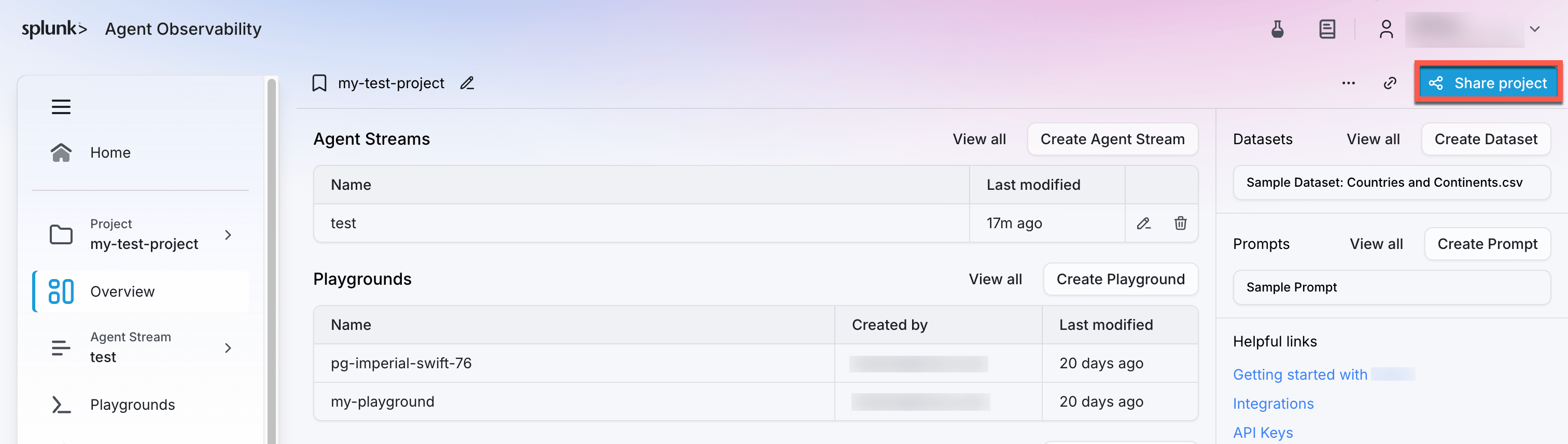
To share a project with collaborators, select your project from the main menu. From the project homepage, select **Share project**.