> ## Documentation Index
> Fetch the complete documentation index at: https://agent-observability-docs.splunk.com/llms.txt
> Use this file to discover all available pages before exploring further.
# Custom Code-Based Evaluators
> Learn how to create, register, and use custom code-based evaluators to evaluate your LLM applications
Custom evaluators allow you to define specific evaluation criteria for your LLM applications. Splunk Agent Observability supports two types of custom evaluators:
* **Registered custom evaluators**: Evaluators that can be shared across your organization
* **Local evaluators**: Evaluators that run in your local notebook environment
## Registered custom evaluators
Registered custom evaluators are stored and run in Splunk Agent Observability's environment and can be used across your organization.
### Create a registered custom evaluator
You can create a registered custom evaluator either through the Python SDK or directly in the Splunk Agent Observability UI. Let's walk through the UI approach:
Use the Splunk Agent Observability main menu to select **Evaluators**. Select the **Create evaluator** button.
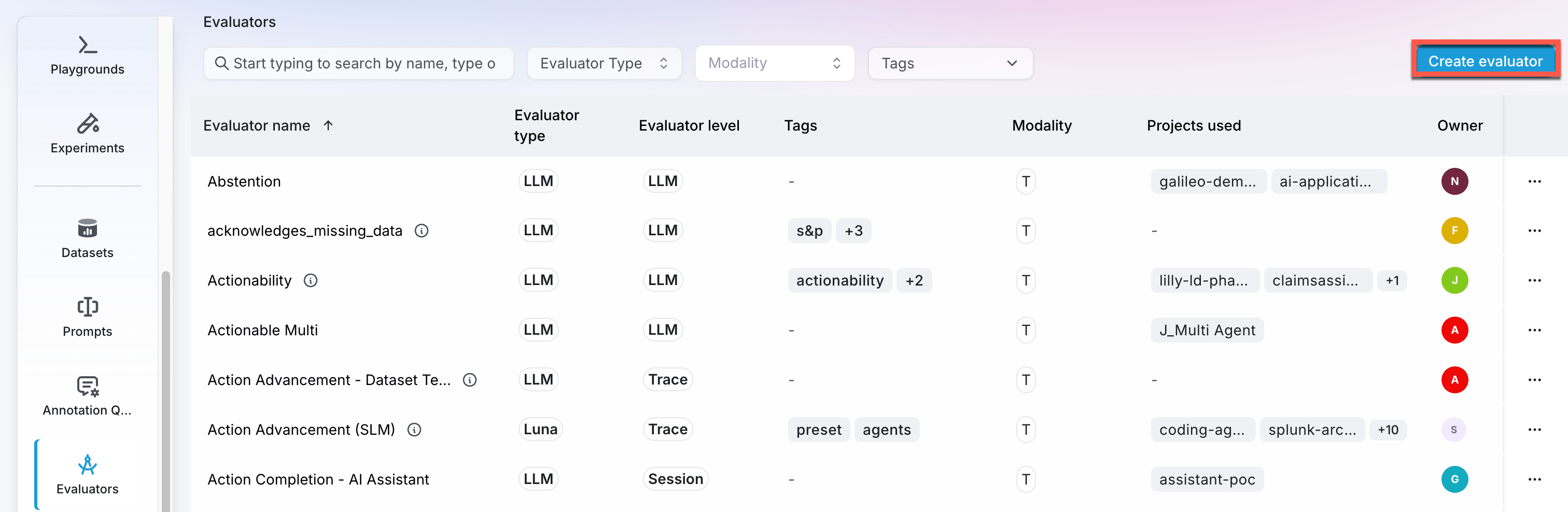 From the dialog that appears, choose the **Code-powered evaluator** type. This option allows you to write custom Python code to evaluate your LLM outputs.
Select the step level you'd like to apply this evaluator to (ie: Sessions, Traces, LlmSpan, etc...). Then, use the code editor to write your custom evaluator. The editor provides a template with the required functions and helpful comments to guide you.
From the dialog that appears, choose the **Code-powered evaluator** type. This option allows you to write custom Python code to evaluate your LLM outputs.
Select the step level you'd like to apply this evaluator to (ie: Sessions, Traces, LlmSpan, etc...). Then, use the code editor to write your custom evaluator. The editor provides a template with the required functions and helpful comments to guide you.
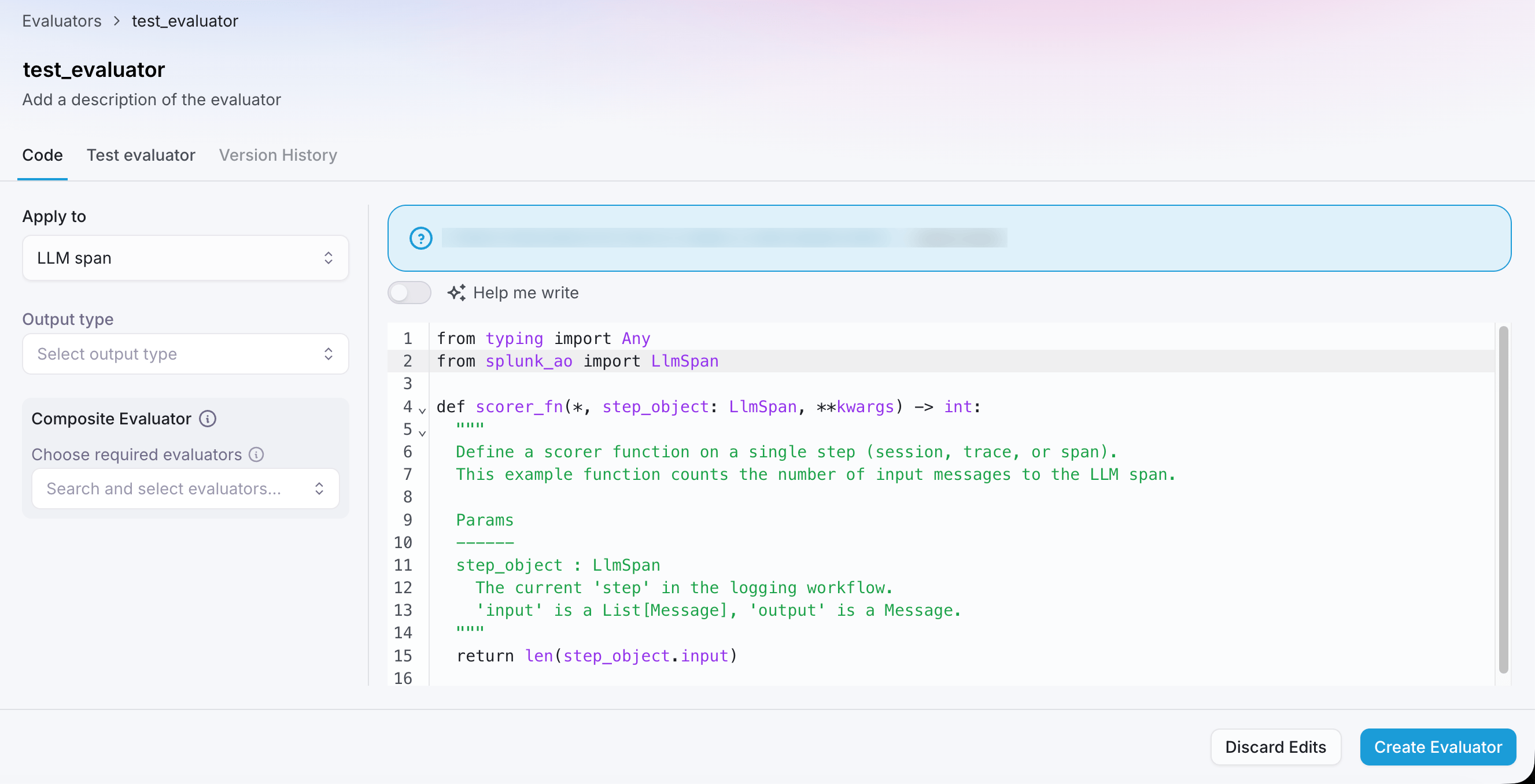 The code editor allows you to write and test your evaluator directly in the browser. You'll need to define the `scorer_fn` function as described below.
You can optionally enable the **Help me write** toggle to use AI-assisted code generation. See [AI-assisted code generation](#ai-assisted-code-generation) for a full walkthrough of this feature.
Before saving, test the evaluator against real inputs and iterate on the code.
From the **Test Evaluator** tab you can test three ways: with **manual input**,
against your **current logs**, or against a **labeled dataset**
to measure how closely it matches your ground truth with a macro F1 score or RMSE.
See [Test your evaluators](/concepts/evaluators/custom-evaluators/test-evaluators) for the
full walkthrough of each method and how the scores are calculated.
After writing your custom evaluator code, select the **Save** button in the bottom right corner of the code editor. Your evaluator will be validated. If there are no errors, the evaluator will be saved and become available for use across your organization.
You can now select this evaluator when running evaluations.
### AI-assisted code generation
Writing a scorer from scratch can be tricky, especially when you're just getting started or when you're migrating from another evaluation framework. The **Help me write** feature generates a working scorer function from a plain-English description — so you can go from idea to runnable evaluator in seconds.
#### How to use it
Follow steps 1-3 of [Create a registered custom evaluator](#create-a-registered-custom-evaluator) to start creating a custom code-based evaluator.
In the code editor, toggle on **Help me write** above the editor panel.
In the prompt field, describe what you want the evaluator to do in natural language. Be as specific as you like — the more detail you provide, the better the generated code will match your intent. Optionally include examples of expected inputs and outputs for edge-case guidance.
You can also paste in code from another evaluation framework (LangSmith, RAGAS, etc.) and the generator will convert it to a Splunk Agent Observability scorer automatically.
The code editor allows you to write and test your evaluator directly in the browser. You'll need to define the `scorer_fn` function as described below.
You can optionally enable the **Help me write** toggle to use AI-assisted code generation. See [AI-assisted code generation](#ai-assisted-code-generation) for a full walkthrough of this feature.
Before saving, test the evaluator against real inputs and iterate on the code.
From the **Test Evaluator** tab you can test three ways: with **manual input**,
against your **current logs**, or against a **labeled dataset**
to measure how closely it matches your ground truth with a macro F1 score or RMSE.
See [Test your evaluators](/concepts/evaluators/custom-evaluators/test-evaluators) for the
full walkthrough of each method and how the scores are calculated.
After writing your custom evaluator code, select the **Save** button in the bottom right corner of the code editor. Your evaluator will be validated. If there are no errors, the evaluator will be saved and become available for use across your organization.
You can now select this evaluator when running evaluations.
### AI-assisted code generation
Writing a scorer from scratch can be tricky, especially when you're just getting started or when you're migrating from another evaluation framework. The **Help me write** feature generates a working scorer function from a plain-English description — so you can go from idea to runnable evaluator in seconds.
#### How to use it
Follow steps 1-3 of [Create a registered custom evaluator](#create-a-registered-custom-evaluator) to start creating a custom code-based evaluator.
In the code editor, toggle on **Help me write** above the editor panel.
In the prompt field, describe what you want the evaluator to do in natural language. Be as specific as you like — the more detail you provide, the better the generated code will match your intent. Optionally include examples of expected inputs and outputs for edge-case guidance.
You can also paste in code from another evaluation framework (LangSmith, RAGAS, etc.) and the generator will convert it to a Splunk Agent Observability scorer automatically.
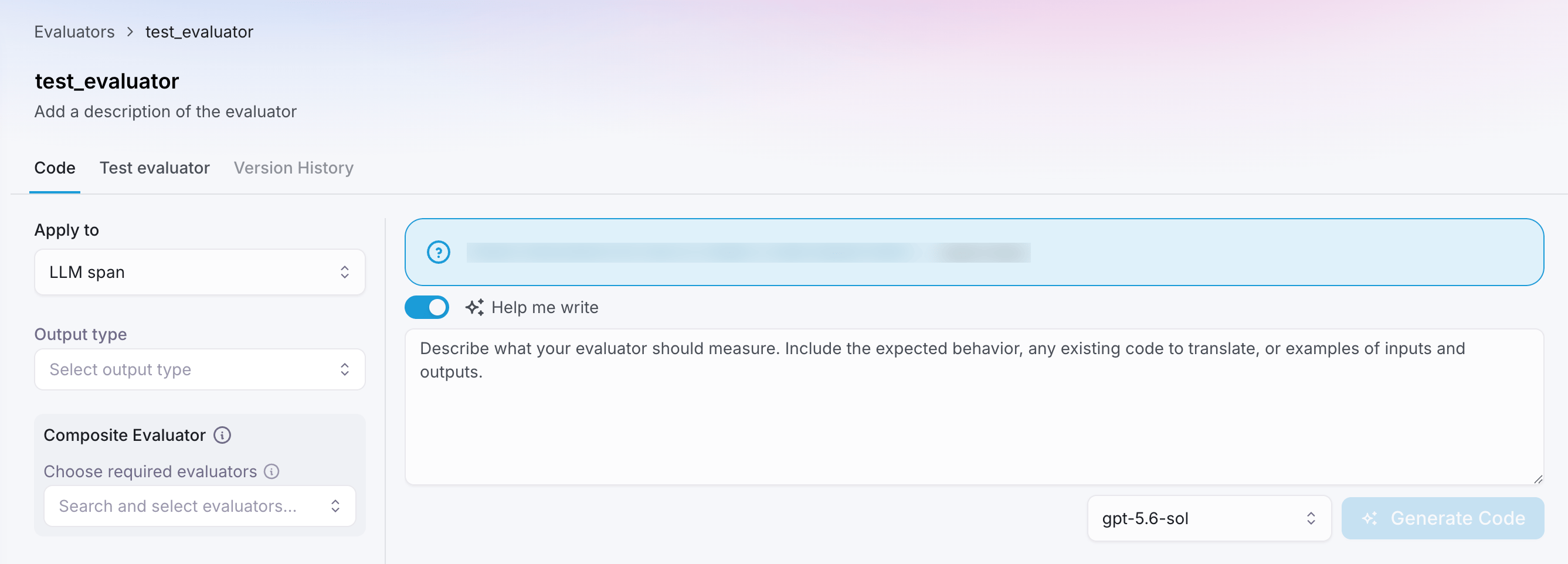 Select the model you want to use for code generation from the dropdown menu. Models recommended for code generation are highlighted.
Click **Generate Code**. The scorer function is written directly into the editor. Review it, adjust if needed, and proceed to test and save as normal.
Next, you can [test and save your code-based evaluator](#test-your-evaluator).
AI-assisted generation is a one-shot tool — it creates a starting point rather than engaging in an iterative conversation. After generating, you can edit the code freely in the editor before saving.
#### Example prompts
**Simple boolean check on an LLM span:**
```text theme={null}
Evaluate if the LLM's output contains any email addresses.
```
**Integer count on sessions:**
```text theme={null}
Count the number of LLM calls made in a session.
```
**Migrating from another framework:**
```text theme={null}
The evaluator should calculate the edit distance between
the ground truth and the generated output.
Use this LangSmith code as a reference:
from langsmith.evaluation import evaluate
import rapidfuzz
def custom_edit_distance(run, example):
prediction = run.outputs.get("output", "")
reference = example.outputs.get("reference_output", "")
distance = rapidfuzz.distance.DamerauLevenshtein.distance(prediction, reference)
return {"key": "custom_damerau_levenshtein", "score": distance}
```
#### The scorer function
This function evaluates individual responses and returns a score:
```python Python theme={null}
def scorer_fn(
*,
step_object: (
Session | Trace | WorkflowSpan | AgentSpan |
LlmSpan | RetrieverSpan | ToolSpan
),
**kwargs: Any
) -> float | int | bool | str:
# Your scoring logic here
return score
```
The function must accept `**kwargs` to ensure forward/backward compatibility. Here's a complete example that measures the difference in length between the output and ground truth:
```python Python theme={null}
def scorer_fn(*,
step_object: LlmSpan,
**kwargs: Any) -> Union[float, int, bool, str, None]:
step_output = step_object.output.content
reference_output = step_object.dataset_output
return abs(len(step_output) - len(reference_output))
```
**Parameter details:**
* **`step_object`**: The step object represents the unit of your LLM application being evaluated. It can be one of several types from the `splunk-ao` library:
* `Session` - A complete user session containing multiple traces
* `Trace` - A single execution trace containing multiple spans
* `WorkflowSpan` - A workflow-level span containing child spans
* `AgentSpan` - An agent execution span
* `LlmSpan` - A single LLM call span
* `RetrieverSpan` - A retriever/search operation span
* `ToolSpan` - A tool execution span
All step objects provide access to key attributes for evaluation:
* **Input/Output data**: Access the input prompt and generated output (e.g., `step_object.output.content` for LLM responses)
* **Metadata**: Additional context like timestamps, model information, and custom metadata
* **Dataset references**: Ground truth or reference data when available (e.g., `step_object.dataset_output`)
* **Hierarchical data**: For Session/Trace/Workflow objects, access child spans and nested execution data
For detailed documentation on each step object type and their specific attributes, refer to the [Splunk Agent Observability Python SDK documentation](/sdk-api/python/sdk-reference). Each type has unique properties tailored to its execution context—for example, `LlmSpan` includes model parameters and token counts, while `RetrieverSpan` includes retrieved documents and search queries.
### Complete example: trace counter
Let's create a custom evaluator that counts the number of traces in a Session:
```python Python theme={null}
from splunk_ao import Session
def scorer_fn(*, step_object: Session, **kwargs) -> int:
num_traces = len(step_object.traces)
return num_traces
```
### Creating composite evaluators
Composite evaluators are advanced custom evaluators that can access and leverage the
results of other evaluators to perform sophisticated evaluations. This allows you
to create conditional logic, aggregate multiple evaluators, or build hierarchical
evaluations.
To create a composite evaluator in the UI:
1. When creating a code-based custom evaluator, use the **Composite Evaluators**
section to select which evaluators must be computed before your composite
evaluator runs
Select the model you want to use for code generation from the dropdown menu. Models recommended for code generation are highlighted.
Click **Generate Code**. The scorer function is written directly into the editor. Review it, adjust if needed, and proceed to test and save as normal.
Next, you can [test and save your code-based evaluator](#test-your-evaluator).
AI-assisted generation is a one-shot tool — it creates a starting point rather than engaging in an iterative conversation. After generating, you can edit the code freely in the editor before saving.
#### Example prompts
**Simple boolean check on an LLM span:**
```text theme={null}
Evaluate if the LLM's output contains any email addresses.
```
**Integer count on sessions:**
```text theme={null}
Count the number of LLM calls made in a session.
```
**Migrating from another framework:**
```text theme={null}
The evaluator should calculate the edit distance between
the ground truth and the generated output.
Use this LangSmith code as a reference:
from langsmith.evaluation import evaluate
import rapidfuzz
def custom_edit_distance(run, example):
prediction = run.outputs.get("output", "")
reference = example.outputs.get("reference_output", "")
distance = rapidfuzz.distance.DamerauLevenshtein.distance(prediction, reference)
return {"key": "custom_damerau_levenshtein", "score": distance}
```
#### The scorer function
This function evaluates individual responses and returns a score:
```python Python theme={null}
def scorer_fn(
*,
step_object: (
Session | Trace | WorkflowSpan | AgentSpan |
LlmSpan | RetrieverSpan | ToolSpan
),
**kwargs: Any
) -> float | int | bool | str:
# Your scoring logic here
return score
```
The function must accept `**kwargs` to ensure forward/backward compatibility. Here's a complete example that measures the difference in length between the output and ground truth:
```python Python theme={null}
def scorer_fn(*,
step_object: LlmSpan,
**kwargs: Any) -> Union[float, int, bool, str, None]:
step_output = step_object.output.content
reference_output = step_object.dataset_output
return abs(len(step_output) - len(reference_output))
```
**Parameter details:**
* **`step_object`**: The step object represents the unit of your LLM application being evaluated. It can be one of several types from the `splunk-ao` library:
* `Session` - A complete user session containing multiple traces
* `Trace` - A single execution trace containing multiple spans
* `WorkflowSpan` - A workflow-level span containing child spans
* `AgentSpan` - An agent execution span
* `LlmSpan` - A single LLM call span
* `RetrieverSpan` - A retriever/search operation span
* `ToolSpan` - A tool execution span
All step objects provide access to key attributes for evaluation:
* **Input/Output data**: Access the input prompt and generated output (e.g., `step_object.output.content` for LLM responses)
* **Metadata**: Additional context like timestamps, model information, and custom metadata
* **Dataset references**: Ground truth or reference data when available (e.g., `step_object.dataset_output`)
* **Hierarchical data**: For Session/Trace/Workflow objects, access child spans and nested execution data
For detailed documentation on each step object type and their specific attributes, refer to the [Splunk Agent Observability Python SDK documentation](/sdk-api/python/sdk-reference). Each type has unique properties tailored to its execution context—for example, `LlmSpan` includes model parameters and token counts, while `RetrieverSpan` includes retrieved documents and search queries.
### Complete example: trace counter
Let's create a custom evaluator that counts the number of traces in a Session:
```python Python theme={null}
from splunk_ao import Session
def scorer_fn(*, step_object: Session, **kwargs) -> int:
num_traces = len(step_object.traces)
return num_traces
```
### Creating composite evaluators
Composite evaluators are advanced custom evaluators that can access and leverage the
results of other evaluators to perform sophisticated evaluations. This allows you
to create conditional logic, aggregate multiple evaluators, or build hierarchical
evaluations.
To create a composite evaluator in the UI:
1. When creating a code-based custom evaluator, use the **Composite Evaluators**
section to select which evaluators must be computed before your composite
evaluator runs
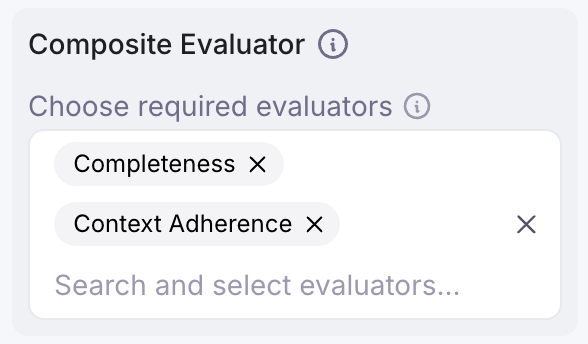 2. Access the required evaluator values in your scorer function via
`step_object.metrics`
#### Example: Conditional evaluation based on other evaluators
```python Python theme={null}
from statistics import mean
from splunk_ao import SplunkAOEvaluators, LlmSpan
def scorer_fn(*, step_object: LlmSpan, **kwargs) -> float:
# Access required evaluators via step_object.metrics
# These evaluators were selected in the "Required Evaluators" dropdown
# Multi-judge evaluators (e.g. correctness, context_adherence) return
# a list of 0/1 values, one per judge. Use mean() to get the score.
correctness_score = mean(
step_object.metrics[SplunkAOEvaluators.correctness] or [0]
)
if correctness_score < 0.7:
return 0.0
return mean(
step_object.metrics[SplunkAOEvaluators.context_adherence] or [0]
)
```
#### Referencing evaluators
* **Splunk Agent Observability preset evaluators**: Use the `SplunkAOEvaluators` enum (e.g.,
`SplunkAOEvaluators.context_adherence`)
* **Custom evaluators**: Use the evaluator name as a string (e.g.,
`step_object.metrics["My Custom Evaluator"]`)
Composite evaluators are **only supported for code-based custom evaluators**.
For a comprehensive guide including use cases and best practices, see the
[Composite Evaluators](/concepts/evaluators/custom-evaluators/composite-evaluators)
documentation.
### Execution environment
Registered custom evaluators run in a sandbox Python 3.10 environment with only
the Python standard library and the Splunk Agent Observability SDK installed.
To install your own PyPI package, you can define dependencies at the top of the
file using the script dependency format from `uv`:
```toml uv theme={null}
# /// script
# dependencies = [
# "requests<3",
# "rich",
# ]
# ///
```
For full documentation on defining dependencies, check out the
['uv' script dependency docs](https://docs.astral.sh/uv/guides/scripts/#creating-a-python-script).
## Local evaluators
A **Local evaluator** (or *Local scorer*) is a custom evaluator that you can attach to an experiment — just like a Splunk Agent Observability preset evaluator. The key difference is that a Local Evaluator lives in code on your machine, so you share it by sharing your code. Local Evaluators are ideal for running isolated tests and refining outcomes when you need more control than built-in evaluators offer.
You can also use any library or custom Python code with your local evaluators, including calling out to LLMs or other APIs.
Splunk Agent Observability currently only supports Local scorers in Python
### Local scorer components
A Local scorer consists of three main parts:
1. **Scorer Function**
Receives a single [`Span`](/sdk-api/logging/splunk-ao-logger#add-spans) or [`Trace`](/sdk-api/logging/splunk-ao-logger#start-a-trace) containing the LLM input and output, and computes a score. The exact measurement is up to you — for example, you might measure the length of the output or rate it based on the presence/absence of specific words.
2. **`LocalMetricConfig[type]`**
A typed callable provided by Splunk Agent Observability's Python SDK that combines your Scorer into a custom evaluator.
* **Example:** If your Scorer returns `bool` values, you would use `LocalMetricConfig[bool](…)`.
Scorer function can be a simple lambda when your logic is straightforward.
Local evaluators let you tailor evaluation to your exact needs by defining custom scoring logic in code. Whether you want to measure response brevity, detect specific keywords, or implement a complex scoring algorithm, Local Evaluators integrate seamlessly with Splunk Agent Observability's experimentation framework. Once you've defined your **Scorer** function and wrapped it in a `LocalMetricConfig`, running the experiment is as simple as calling `run_experiment`. The results appear alongside Splunk Agent Observability's built-in evaluators, so you can compare, visualize, and analyze everything in one place.
With local evaluators, you have full control over how you measure LLM behavior—unlocking deeper insights and more targeted evaluations for your AI applications.
Learn how to create a local evaluator in Python to use in your experiments
### Comparison: registered custom evaluators vs. local evaluators
| Feature | Registered Custom Evaluators | Local Evaluators |
| :-------------- | :--------------------------------------- | :----------------------- |
| **Creation** | Python client, activated via UI | Python client only |
| **Sharing** | Organization-wide | Current project only |
| **Environment** | Server-side | Local Python environment |
| **Libraries** | Any available library. | Any available library |
| **Resources** | Restricted by Splunk Agent Observability | Local resources |
### Common use cases
Custom evaluators are ideal for:
* **Heuristic evaluation**: Checking for specific patterns, keywords, or structural elements
* **Model-guided evaluation**: Using pre-trained models to detect entities or LLMs to grade outputs
* **Business-specific evaluators**: Measuring domain-specific quality indicators
* **Comparative analysis**: Comparing outputs against ground truth or reference data
### Simple example: sentiment scorer
Here's a simple custom evaluator that measures the sentiment of responses:
```python Python theme={null}
from splunk_ao import Span, Trace
def scorer_fn(step: Span | Trace) -> float:
"""
A simple sentiment scorer that counts positive and negative words.
Returns a score between -1 (negative) and 1 (positive).
"""
positive_words = [
"good", "great", "excellent",
"positive", "happy", "best", "wonderful"
]
negative_words = [
"bad", "poor", "negative", "terrible",
"worst", "awful", "horrible"
]
step_output = step.output.content
# Convert to lowercase for case-insensitive matching
text = step_output.lower()
# Count occurrences
positive_count = sum(text.count(word) for word in positive_words)
negative_count = sum(text.count(word) for word in negative_words)
total_count = positive_count + negative_count
# Calculate sentiment score
if total_count == 0:
return 0.0 # Neutral
return (positive_count - negative_count) / total_count
```
This simple sentiment scorer:
* Counts positive and negative words in responses
* Calculates a sentiment score between -1 (negative) and 1 (positive)
* Aggregates results to show the distribution of positive, neutral, and negative responses
You can easily extend this with more sophisticated sentiment analysis techniques or domain-specific terminology.
## Next steps
Learn how to create custom LLM-as-a-judge evaluators in the Splunk Agent Observability UI or in code.
Learn best practices for prompt engineering with custom LLM-as-a-judge evaluators.
Explore Splunk Agent Observability's comprehensive evaluators framework for evaluating and improving AI system performance across multiple dimensions.
Learn how to create a local evaluator in Python to use in your experiments
Learn how to run experiments in Splunk Agent Observability using the Splunk Agent Observability SDKs and custom evaluators.
2. Access the required evaluator values in your scorer function via
`step_object.metrics`
#### Example: Conditional evaluation based on other evaluators
```python Python theme={null}
from statistics import mean
from splunk_ao import SplunkAOEvaluators, LlmSpan
def scorer_fn(*, step_object: LlmSpan, **kwargs) -> float:
# Access required evaluators via step_object.metrics
# These evaluators were selected in the "Required Evaluators" dropdown
# Multi-judge evaluators (e.g. correctness, context_adherence) return
# a list of 0/1 values, one per judge. Use mean() to get the score.
correctness_score = mean(
step_object.metrics[SplunkAOEvaluators.correctness] or [0]
)
if correctness_score < 0.7:
return 0.0
return mean(
step_object.metrics[SplunkAOEvaluators.context_adherence] or [0]
)
```
#### Referencing evaluators
* **Splunk Agent Observability preset evaluators**: Use the `SplunkAOEvaluators` enum (e.g.,
`SplunkAOEvaluators.context_adherence`)
* **Custom evaluators**: Use the evaluator name as a string (e.g.,
`step_object.metrics["My Custom Evaluator"]`)
Composite evaluators are **only supported for code-based custom evaluators**.
For a comprehensive guide including use cases and best practices, see the
[Composite Evaluators](/concepts/evaluators/custom-evaluators/composite-evaluators)
documentation.
### Execution environment
Registered custom evaluators run in a sandbox Python 3.10 environment with only
the Python standard library and the Splunk Agent Observability SDK installed.
To install your own PyPI package, you can define dependencies at the top of the
file using the script dependency format from `uv`:
```toml uv theme={null}
# /// script
# dependencies = [
# "requests<3",
# "rich",
# ]
# ///
```
For full documentation on defining dependencies, check out the
['uv' script dependency docs](https://docs.astral.sh/uv/guides/scripts/#creating-a-python-script).
## Local evaluators
A **Local evaluator** (or *Local scorer*) is a custom evaluator that you can attach to an experiment — just like a Splunk Agent Observability preset evaluator. The key difference is that a Local Evaluator lives in code on your machine, so you share it by sharing your code. Local Evaluators are ideal for running isolated tests and refining outcomes when you need more control than built-in evaluators offer.
You can also use any library or custom Python code with your local evaluators, including calling out to LLMs or other APIs.
Splunk Agent Observability currently only supports Local scorers in Python
### Local scorer components
A Local scorer consists of three main parts:
1. **Scorer Function**
Receives a single [`Span`](/sdk-api/logging/splunk-ao-logger#add-spans) or [`Trace`](/sdk-api/logging/splunk-ao-logger#start-a-trace) containing the LLM input and output, and computes a score. The exact measurement is up to you — for example, you might measure the length of the output or rate it based on the presence/absence of specific words.
2. **`LocalMetricConfig[type]`**
A typed callable provided by Splunk Agent Observability's Python SDK that combines your Scorer into a custom evaluator.
* **Example:** If your Scorer returns `bool` values, you would use `LocalMetricConfig[bool](…)`.
Scorer function can be a simple lambda when your logic is straightforward.
Local evaluators let you tailor evaluation to your exact needs by defining custom scoring logic in code. Whether you want to measure response brevity, detect specific keywords, or implement a complex scoring algorithm, Local Evaluators integrate seamlessly with Splunk Agent Observability's experimentation framework. Once you've defined your **Scorer** function and wrapped it in a `LocalMetricConfig`, running the experiment is as simple as calling `run_experiment`. The results appear alongside Splunk Agent Observability's built-in evaluators, so you can compare, visualize, and analyze everything in one place.
With local evaluators, you have full control over how you measure LLM behavior—unlocking deeper insights and more targeted evaluations for your AI applications.
Learn how to create a local evaluator in Python to use in your experiments
### Comparison: registered custom evaluators vs. local evaluators
| Feature | Registered Custom Evaluators | Local Evaluators |
| :-------------- | :--------------------------------------- | :----------------------- |
| **Creation** | Python client, activated via UI | Python client only |
| **Sharing** | Organization-wide | Current project only |
| **Environment** | Server-side | Local Python environment |
| **Libraries** | Any available library. | Any available library |
| **Resources** | Restricted by Splunk Agent Observability | Local resources |
### Common use cases
Custom evaluators are ideal for:
* **Heuristic evaluation**: Checking for specific patterns, keywords, or structural elements
* **Model-guided evaluation**: Using pre-trained models to detect entities or LLMs to grade outputs
* **Business-specific evaluators**: Measuring domain-specific quality indicators
* **Comparative analysis**: Comparing outputs against ground truth or reference data
### Simple example: sentiment scorer
Here's a simple custom evaluator that measures the sentiment of responses:
```python Python theme={null}
from splunk_ao import Span, Trace
def scorer_fn(step: Span | Trace) -> float:
"""
A simple sentiment scorer that counts positive and negative words.
Returns a score between -1 (negative) and 1 (positive).
"""
positive_words = [
"good", "great", "excellent",
"positive", "happy", "best", "wonderful"
]
negative_words = [
"bad", "poor", "negative", "terrible",
"worst", "awful", "horrible"
]
step_output = step.output.content
# Convert to lowercase for case-insensitive matching
text = step_output.lower()
# Count occurrences
positive_count = sum(text.count(word) for word in positive_words)
negative_count = sum(text.count(word) for word in negative_words)
total_count = positive_count + negative_count
# Calculate sentiment score
if total_count == 0:
return 0.0 # Neutral
return (positive_count - negative_count) / total_count
```
This simple sentiment scorer:
* Counts positive and negative words in responses
* Calculates a sentiment score between -1 (negative) and 1 (positive)
* Aggregates results to show the distribution of positive, neutral, and negative responses
You can easily extend this with more sophisticated sentiment analysis techniques or domain-specific terminology.
## Next steps
Learn how to create custom LLM-as-a-judge evaluators in the Splunk Agent Observability UI or in code.
Learn best practices for prompt engineering with custom LLM-as-a-judge evaluators.
Explore Splunk Agent Observability's comprehensive evaluators framework for evaluating and improving AI system performance across multiple dimensions.
Learn how to create a local evaluator in Python to use in your experiments
Learn how to run experiments in Splunk Agent Observability using the Splunk Agent Observability SDKs and custom evaluators.