> ## Documentation Index
> Fetch the complete documentation index at: https://agent-observability-docs.splunk.com/llms.txt
> Use this file to discover all available pages before exploring further.
# Add Evaluations to a Multi-Agent LangGraph Application
> Learn how to add evaluations to a multi-agent LangGraph chat bot using Splunk Agent Observability
## Overview
In this tutorial, you'll learn how to add evaluations with Splunk Agent Observability to an existing multi-agent [LangGraph](https://www.langchain.com/langgraph) app. This tutorial is intended for Python LangGraph developers who already have an app and are looking to add evaluation. It assumes you have basic knowledge of:
* Python
* LangGraph
* [Setting up a project and evaluators in Splunk Agent Observability](https://agent-observability-docs.splunk.com/getting-started/quickstart.md)
By the end of this tutorial, you'll be able to:
* Add Splunk Agent Observability evaluations to a multi-agent LangGraph app
* View and understand session level evaluators
## Background
This tutorial uses an existing banking chatbot app powered by Chainlit and LangGraph. This is a very simplistic example of a chatbot for a fictitious bank. It is a multi-agent app, with a supervisor agent, and a single additional agent that can be used to answer questions on the credit cards offered by the bank. This agent uses some dummy credit card documents stored in a Pinecone vector database.
For example, you can ask questions like "What credit cards do you offer?" or "Which card has the lowest annual fee?"
These are the 2 agents:
* Credit card information agent
This agent provides information on the available credit cards.
```mermaid theme={null}
---
config:
flowchart:
curve: linear
---
graph TD;
__start__([Start
]):::first
agent(credit card information agent)
tools(tools)
pinecone_tool(pinecone retrieval tool)
__end__([End
]):::last
__start__ --> agent;
agent -.-> __end__;
agent -.-> tools;
tools --> agent;
tools -.-> pinecone_tool;
pinecone_tool --> tools;
```
The credit card documentation that the agent uses is stored in a [Pinecone](https://www.pinecone.io) vector database.
* Supervisor agent
```mermaid theme={null}
---
config:
flowchart:
curve: linear
---
graph TD;
__start__([Start
]):::first
supervisor(supervisor)
credit-card-agent(credit card information agent)
__end__([End
]):::last
__start__ --> supervisor;
credit-card-agent --> supervisor;
supervisor -.-> __end__;
supervisor -.-> credit-card-agent;
```
Chainlit provides a web front end for a chatbot, managing user interaction and conversation history. The important files in this app are:
* `app.py` - This contains the main application logic for a Chainlit app. It has an `on_chat_start` function that is called whenever a new chat is started, and a `main` function that is called whenever a message is sent.
* `src/splunk_ao_langgraph_fsi_agent/agents/supervisor_agent.py` - This is a LangGraph supervisor agent that manages the other agents, routing messages where needed. This is configured to use GPT-4.1-mini.
* `src/splunk_ao_langgraph_fsi_agent/agents/credit_card_information_agent.py` - This is a LangGraph agent that uses a tool to extract information about the available credit cards from Pinecone. This is also configured to use GPT-4.1-mini.
* `src/splunk_ao_langgraph_fsi_agent/tools/pinecone_retrieval_tool.py` - This is a LangGraph tool that interacts with the Pinecone vector database. It is called by the `credit_card_information_agent`.
## Before you start
Before you start the tutorial, you will need:
* **The starter project** - Clone the [Splunk Agent Observability Python SDK repo](https://github.com/splunk/splunk-ao-python). This repo contains both the starting LangGraph app that you will be adding Splunk Agent Observability evaluations to, as well as a final version for reference.
* **A Pinecone account and API key** - If you don't have an existing Pinecone account, head to [Pinecone.io](https://www.pinecone.io), sign up for a free account, and get an [API key](https://docs.pinecone.io/guides/get-started/quickstart#2-get-an-api-key).
* **An OpenAI API key** - This example uses OpenAI as the underlying LLM to run the agents.
* **A Splunk Agent Observability API key** - To access your Splunk Agent Observability API keys, open the Splunk Agent Observability UI and log in or create an account. From the **Settings and Users** page you can create a new API key.
## Set up the project
The starter project is in the `examples/agent/langgraph-fsi-agent/before` folder in the cloned repo.
**1. Open the starter project in your Python IDE of choice.**
**2. Install the dependencies that are defined in the pyproject.toml.**
Create a virtual environment, and install these dependencies using a tool such as [`uv`](https://docs.astral.sh/uv/):
```bash theme={null}
uv venv .venv
source .venv/bin/activate
uv sync --dev
```
**3. Configure your .env file.**
Copy the `.env.example` file to `.env`, and set the values for your OpenAI and Pinecone API keys:
```ini theme={null}
# AI services
OPENAI_API_KEY=
PINECONE_API_KEY=
```
Replace `` with your OpenAI API key. Replace `` with your Pinecone API key.
**4. Upload the dummy credit card documentation to Pinecone using the provided helper script.**
```bash theme={null}
python ./scripts/setup_pinecone.py
```
This will take a few seconds and a successful run should look like:
```text theme={null}
Loading documents for credit-card-information folder...
...
✅ Document processing and upload complete!
```
**5. Run the project to test it out.**
```bash theme={null}
chainlit run app.py -w
```
The app will be running at [localhost:8000](http://localhost:8000), so open it in your browser.
Ask the bot questions like "What credit cards do you offer?".
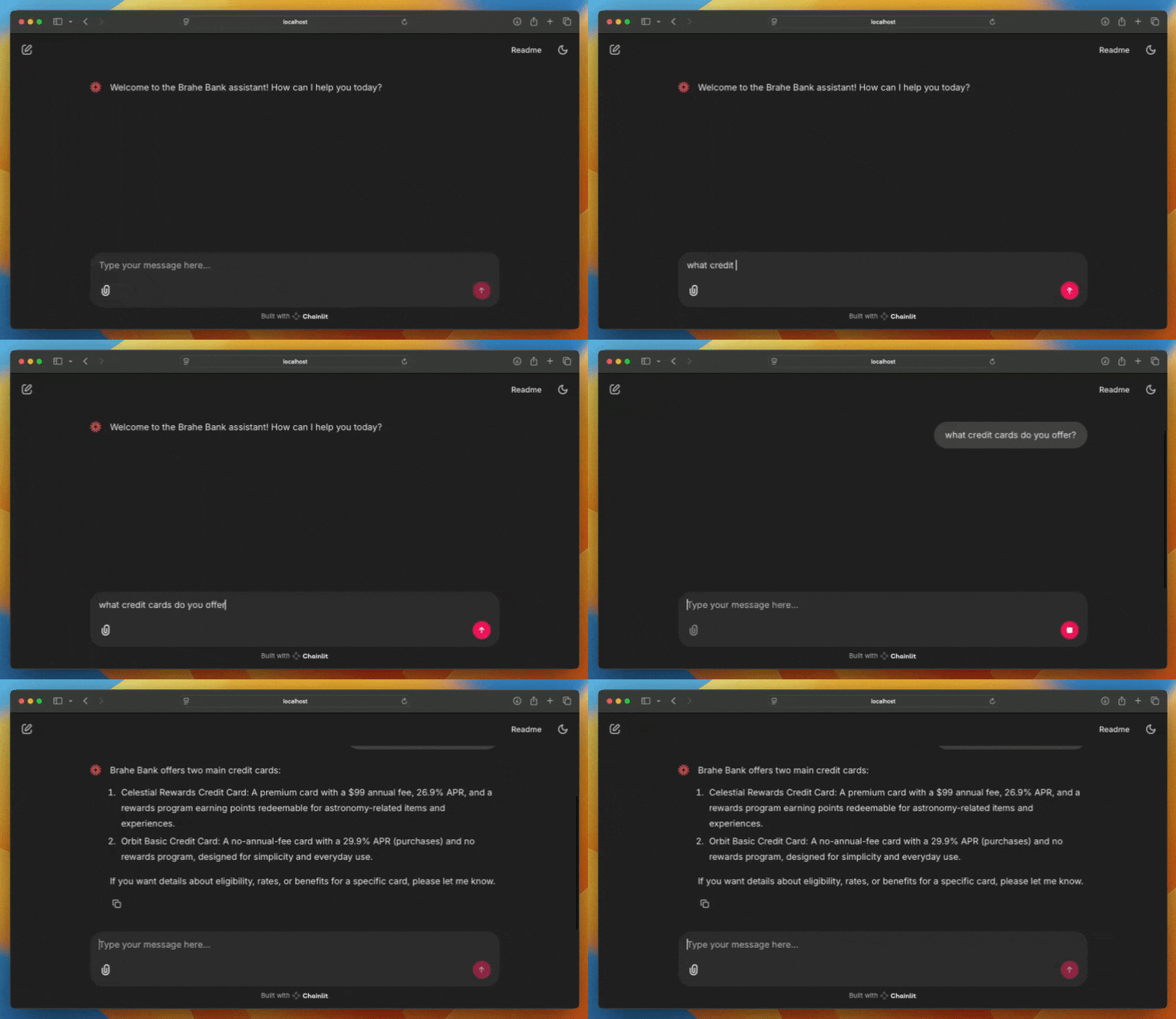
You are now ready to add Splunk Agent Observability evaluations to your app.
## Create a new Splunk Agent Observability project
First you need a new Splunk Agent Observability project to log evaluations to.
**1. Create a new project from the Splunk Agent Observability UI**
Log into Splunk Agent Observability and select **Create new project**. Name this project `bank-chatbot`.
## Install the Splunk Agent Observability Python package
To send data to Splunk Agent Observability, you need to use the Splunk Agent Observability Python package.
**1. Install the Splunk Agent Observability Python package in your virtual environment.**
```bash theme={null}
uv add "splunk-ao[openai]"
```
This installs the Splunk Agent Observability Python package with the optional OpenAI wrapper.
**2. Add the following Splunk Agent Observability environment variables to your .env file.**
**On-premises**
```ini .env theme={null}
# On-premises, standalone, custom deployments
SPLUNK_AO_API_KEY="your-splunk-ao-api-key"
SPLUNK_AO_CONSOLE_URL="your-splunk-ao-url"
# Your Splunk Agent Observability project name
SPLUNK_AO_PROJECT="your-splunk-ao-project-name"
# The name of the Agent Stream you want to use for logging
SPLUNK_AO_AGENT_STREAM="your-splunk-ao-agent-stream"
```
> [!NOTE]
>
> If you're using the free version of Splunk Agent Observability, the `SPLUNK_AO_CONSOLE_URL` environment variable isn't needed.
For more information on these environment variables, see [Find Your Organization Keys](https://agent-observability-docs.splunk.com/references/faqs/find-keys.md).
**SaaS**
```ini .env theme={null}
# SaaS (Splunk Observability Cloud) deployments
SPLUNK_AO_O11Y_TOKEN="your-splunk-o11y-token"
SPLUNK_AO_REALM="your-splunk-o11y-deployment-realm"
# Your Splunk Agent Observability project name
SPLUNK_AO_PROJECT="your-splunk-ao-project-name"
# The name of the Agent Stream you want to use for logging
SPLUNK_AO_AGENT_STREAM="your-splunk-ao-agent-stream"
```
For more information on these environment variables, see [Find Your Organization Keys](https://agent-observability-docs.splunk.com/references/faqs/find-keys.md#saas).
The project is set to the new project you just created, and the Agent Stream is set to `chatbot-logs`.
> [!NOTE]
>
> You don't need to create the Agent Stream in advance; a new Agent Stream will be created automatically.
## Add logging to Splunk Agent Observability
Next you need to add code to log to Splunk Agent Observability. Splunk Agent Observability has a LangGraph callback handler that can be passed into the agent to automatically log traces for every step in the chain, including agent calls, tool calls, and LLM calls.
> [!NOTE]
>
> You can find a complete version of this code with all the code added in the `examples/agent/langgraph-fsi-agent/before` folder in the cloned repo.
### Add the logging code
**1. Add include directives for the Splunk Agent Observability components to the top of the app.py file.**
```python theme={null}
from splunk_ao import splunk_ao_context
from splunk_ao.handlers.langchain import SplunkAOAsyncCallback
```
**2. Start a Splunk Agent Observability session.**
In the `on_chat_start` function in `app.py`, add the following code to create a new logging session:
```python theme={null}
# Start Splunk Agent Observability session with unique session name
current_time = datetime.now().strftime("%Y-%m-%d %H:%M:%S")
session_name = f"FSI Agent - {current_time}"
splunk_ao_context.start_session(name=session_name,
external_id=cl.context.session.id)
```
This creates a new session named "FSI Agent - \{time}" with the current date and time. This also sets the `external_id` to the current Chainlit session ID. Each separate conversation in Chainlit is a separate session with a unique ID.
**3. Create a callback handler.**
After the code you just added, add the following to create the callback handler, and save it in the Chainlit session:
```python theme={null}
# Create the callback. This needs to be created in the same
# thread as the session so that it uses the same session context.
splunk_ao_callback = SplunkAOAsyncCallback()
cl.user_session.set("splunk_ao_callback", splunk_ao_callback)
```
This creates the callback handler, and saves it against the current user session.
> [!NOTE]
>
> The Splunk Agent Observability logging handlers use the current thread context to connect to the current Splunk Agent Observability context. This means to have a callback handler tied to a session, it needs to be created in the same thread as the session. It can then be access from any other thread.
**4. Pass the callback handler to LangGraph.**
In the `main` function, replace this line:
```python theme={null}
callbacks: Callbacks = []
```
With the following:
```python theme={null}
splunk_ao_callback = cl.user_session.get("splunk_ao_callback")
callbacks: Callbacks = [splunk_ao_callback]
```
This will extract the Splunk Agent Observability callback from the user session, and adds it to a callbacks collection. This collection is passed to the LangGraph `RunnableConfig` that is passed when the supervisor agent is used.
### Run the app
**1. Run the app.**
```bash theme={null}
chainlit run app.py -w
```
Open the app in your browser at [localhost:8000](http://localhost:8000), and ask the bot a question. In your terminal you will see references to the Splunk Agent Observability Agent Stream being created, and traces being flushed:
```output theme={null}
🚀 Creating new Agent Stream... Agent Stream chatbot-logs created!
...
Flushing 1 traces...
Successfully flushed 1 traces.
```
Leave the app running whilst you view the traces.
### View the traces
**1. View the session in Splunk Agent Observability.**
Open the Splunk Agent Observability UI, select your project, and select your Agent Stream. In the **Sessions** tab you should see a single session created for the conversation.

**2. Select the single session.**
Select the **Trace graph** tab to see the flowchart.

Select the nodes in this chart to see the input and output.
### Add more traces to the session
Sessions can contain multiple traces. For example, a single user conversation with your bot would be a single session, containing multiple traces for the different questions you ask the bot.
**1. Ask the bot a follow up question related to credit cards, such as 'Which card has no annual fee?'**
**2. Follow this up with a third question that does not involve specific information about the credit cards, such as 'What does APR stand for?'**
**3. View the session in the Splunk Agent Observability UI.**
This session will have 3 traces. Use the Trace navigation to move between the traces. In the **Input** and **Output** you will see the relevant messages.
**4. Navigate to the last trace.**
Where you asked "What does APR stand for?", the credit card agent would not need to be used, so the flowchart doesn't show this node.
## Summary
In this tutorial, you learned how to:
* Add Splunk Agent Observability evaluations to a multi-agent LangGraph app
* View and navigate session level traces
## Next steps
Some suggested next steps are:
* [Add evaluators to your project to evaluate your app](https://agent-observability-docs.splunk.com/concepts/evaluators/overview.md)
This documentation is built and hosted on [Mintlify](https://mintlify.com), a developer documentation platform.