> ## Documentation Index
> Fetch the complete documentation index at: https://agent-observability-docs.splunk.com/llms.txt
> Use this file to discover all available pages before exploring further.
# Evaluate Your Traces
> Learn how to evaluate your logged trace with Splunk Agent Observability, and improve your application
In the [log to Splunk Agent Observability guide](/getting-started/quickstart), you logged your first trace to Splunk Agent Observability. In this guide, you will evaluate the response from the LLM using the [context adherence evaluator](/concepts/evaluators/rag/generation-quality/context-adherence), then improve the prompt, and re-evaluate your application.
## Configure an LLM integration
To evaluate an LLM application, you need to set up an LLM integration for the LLM that will be used as a judge.
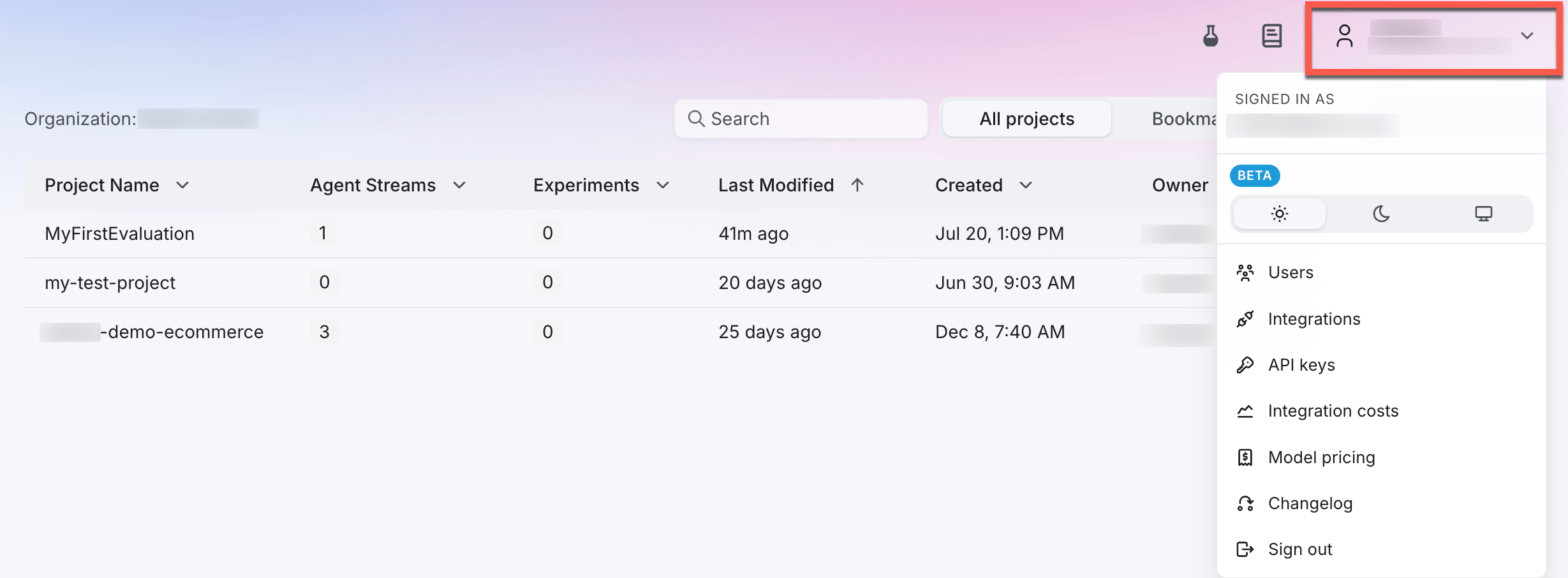
In the Splunk Agent Observability UI, navigate to the **LLM Integrations** page by selecting your user profile in the upper-right corner and then selecting **Integrations**.
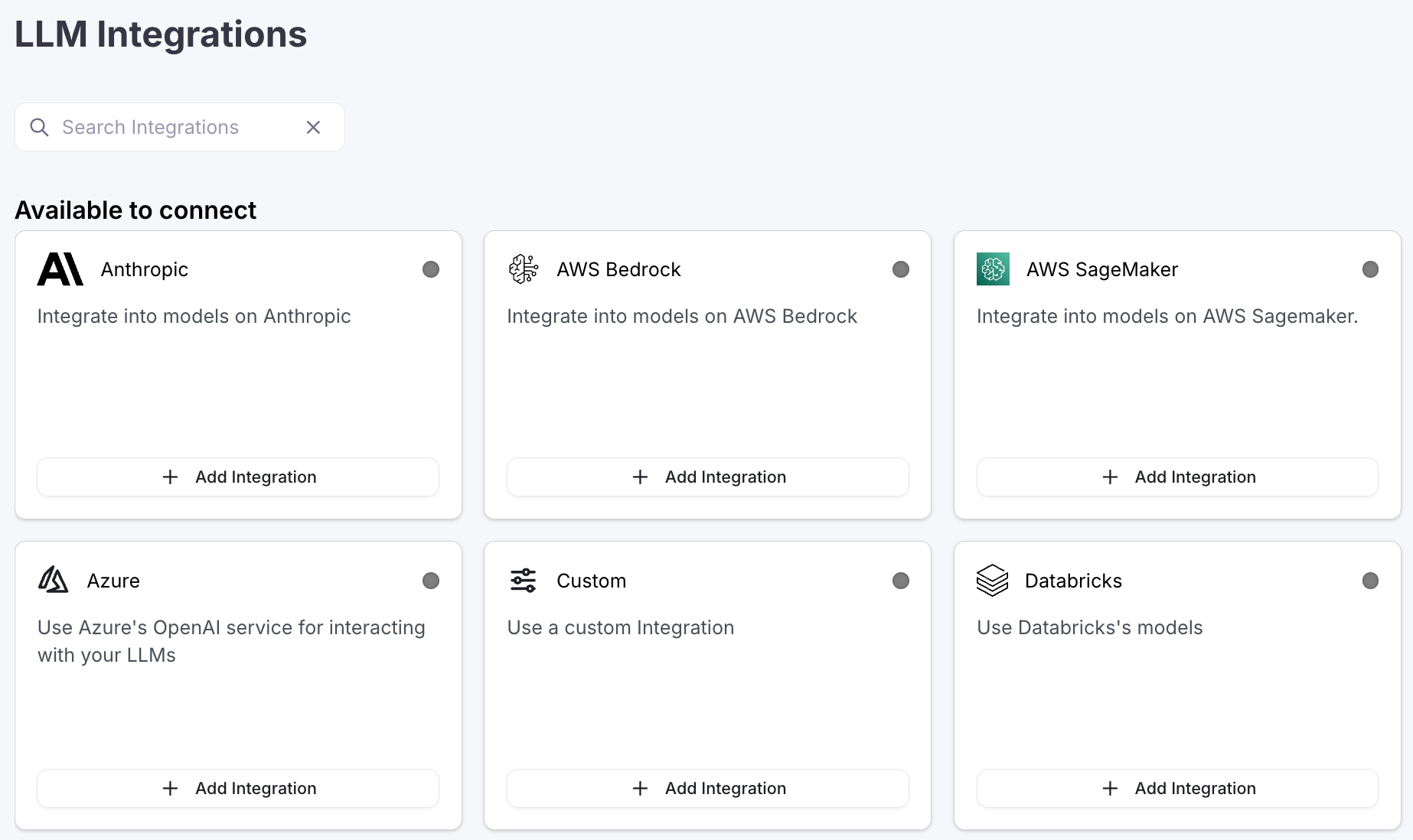
 Locate the LLM provider you are using (or specify a [custom integration](/sdk-api/third-party-integrations/model-integrations/custom-model-integrations/custom-model-integrations)), then select the **+Add Integration** button.
 Specify settings for your integration (such as an API key), then select **Save changes**.
## Log a trace with an evaluator
To evaluate the Agent Stream against context adherence, you need to turn this on for your Agent Stream.
Add the following import statements to the top of your app file:
```python Python theme={null}
from splunk_ao import SplunkAOEvaluators
from splunk_ao.agent_streams import enable_evaluators
```
Next add the following code to your app file. If you are using Python, add this after the call to `splunk_ao_context.init()`.
```python Python theme={null}
# Enable context adherence
enable_evaluators(project_name="MyFirstEvaluation",
agent_stream_name="MyFirstAgentStream",
metrics=[SplunkAOEvaluators.context_adherence])
```
This code will enable the context adherence evaluator for your Agent Stream, and this evaluator will then be calculated for all LLM spans that are logged.
Now that you have evaluators turned on for your Agent Stream, re-run your application to generate another trace. This time the context adherence evaluator will be calculated.
```bash Python theme={null}
python app.py
```
In the Splunk Agent Observability UI, select your project, then select the Agent Stream.
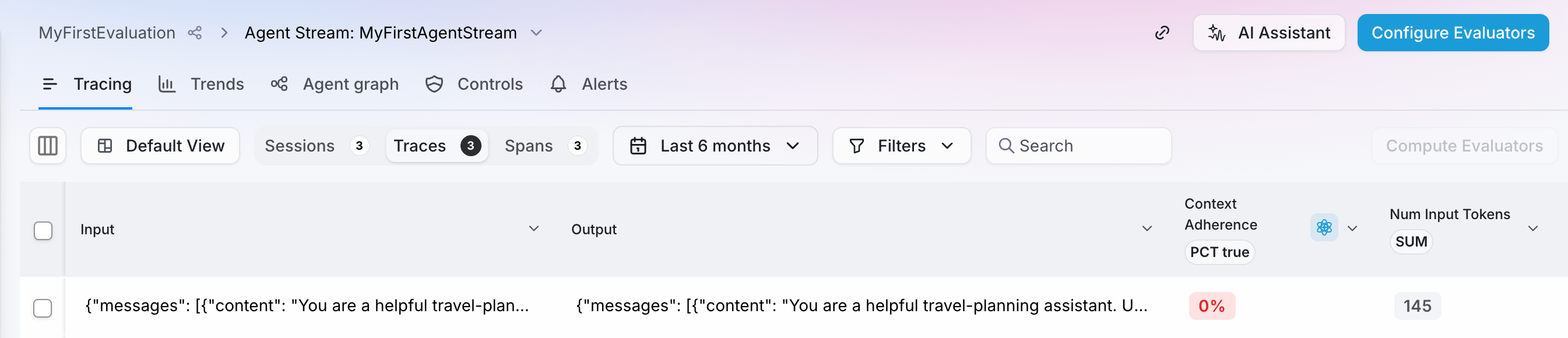
You can see the trace that was just logged in the **Traces** tab. The context adherence evaluator will be calculated, showing low score.
Specify settings for your integration (such as an API key), then select **Save changes**.
## Log a trace with an evaluator
To evaluate the Agent Stream against context adherence, you need to turn this on for your Agent Stream.
Add the following import statements to the top of your app file:
```python Python theme={null}
from splunk_ao import SplunkAOEvaluators
from splunk_ao.agent_streams import enable_evaluators
```
Next add the following code to your app file. If you are using Python, add this after the call to `splunk_ao_context.init()`.
```python Python theme={null}
# Enable context adherence
enable_evaluators(project_name="MyFirstEvaluation",
agent_stream_name="MyFirstAgentStream",
metrics=[SplunkAOEvaluators.context_adherence])
```
This code will enable the context adherence evaluator for your Agent Stream, and this evaluator will then be calculated for all LLM spans that are logged.
Now that you have evaluators turned on for your Agent Stream, re-run your application to generate another trace. This time the context adherence evaluator will be calculated.
```bash Python theme={null}
python app.py
```
In the Splunk Agent Observability UI, select your project, then select the Agent Stream.
You can see the trace that was just logged in the **Traces** tab. The context adherence evaluator will be calculated, showing low score.
 Select the trace, then select the LLM span to drill down for more information.
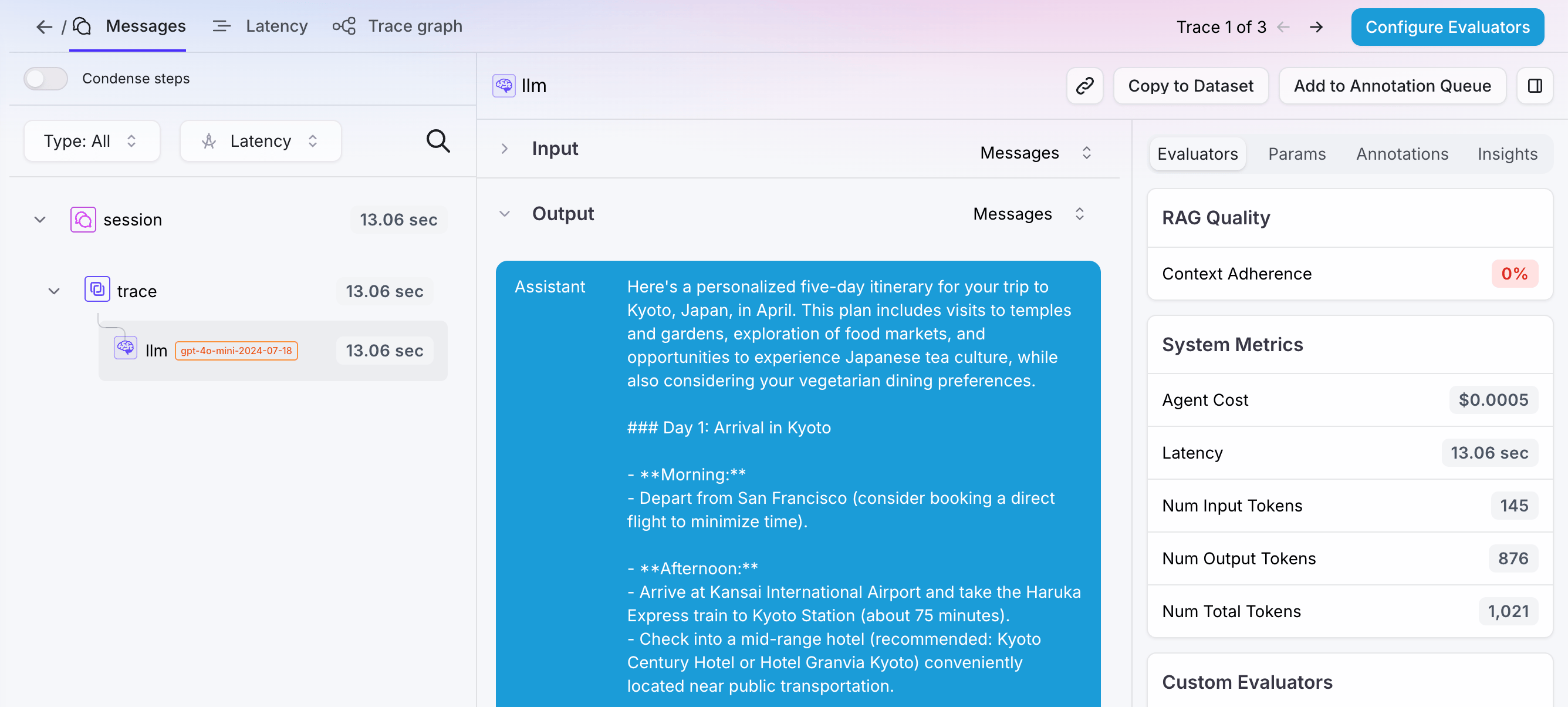 This shows a common problem with an AI application: the LLM does not have enough relevant context to produce a useful, personalized response.
The request asks the model to plan a trip but does not provide a destination, dates, budget, or traveler preferences. As a result, the model can only give generic advice, ask for more information, or make unsupported assumptions.
Let's fix this by providing relevant traveler information as context, then confirm the improvement with a higher context adherence score.
## Improve your application
To improve the context adherence score, provide the LLM with relevant traveler information, such as the destination, trip length, budget, and interests.
To improve context adherence, add the traveler's requirements and preferences to the system prompt. This is similar to providing an application with information retrieved from a RAG system.
Update your code, replacing the existing system prompt with the following:
```python Python theme={null}
relevant_documents = [
"""
The traveler wants to take a five-day trip to Kyoto, Japan, in April.
They will depart from San Francisco.
""",
"""
The traveler has a budget of $3,000, excluding airfare. They prefer
a mid-range hotel near public transportation.
""",
"""
The traveler is interested in temples, gardens, food markets, and
Japanese tea culture. They prefer a relaxed itinerary with
vegetarian-friendly dining options.
"""
]
system_prompt = f"""
You are a helpful travel-planning assistant. Use the provided traveler
information to create a personalized itinerary. Do not invent traveler
preferences or requirements that are not included in the context.
Here is the relevant traveler information:
{relevant_documents}
"""
```
Run your application again to log a new trace.
The response should now provide a personalized trip plan based on the supplied traveler information. For example:
```output Terminal wrap theme={null}
Here is a relaxed five-day itinerary for Kyoto in April:
### Day 1: Arrival and central Kyoto
- Check in to a mid-range hotel near a train or subway station.
- Take an easy walk through central Kyoto.
- Have dinner at a vegetarian-friendly restaurant.
### Day 2: Temples and gardens
- Visit Kinkaku-ji in the morning.
- Explore the gardens and temples in the Arashiyama area.
- Leave time for a relaxed walk through the bamboo grove.
### Day 3: Markets and local food
- Visit Nishiki Market.
- Explore nearby shops and historic streets.
- Look for vegetarian versions of local dishes.
### Day 4: Tea culture
- Take a day trip to Uji to experience Japanese tea culture.
- Visit a tea house and explore the area at a relaxed pace.
### Day 5: Eastern Kyoto
- Walk through the Higashiyama district.
- Visit Kiyomizu-dera and nearby gardens.
- Finish the trip with time for shopping or an additional tea experience.
This itinerary can be adjusted while keeping the total budget near $3,000, excluding airfare. Choosing a mid-range hotel near public transportation will make it easier to reach each area.
```
The exact response might differ depending on the model and when you run the application, but it should use the supplied destination, trip length, budget, lodging preference, and interests.
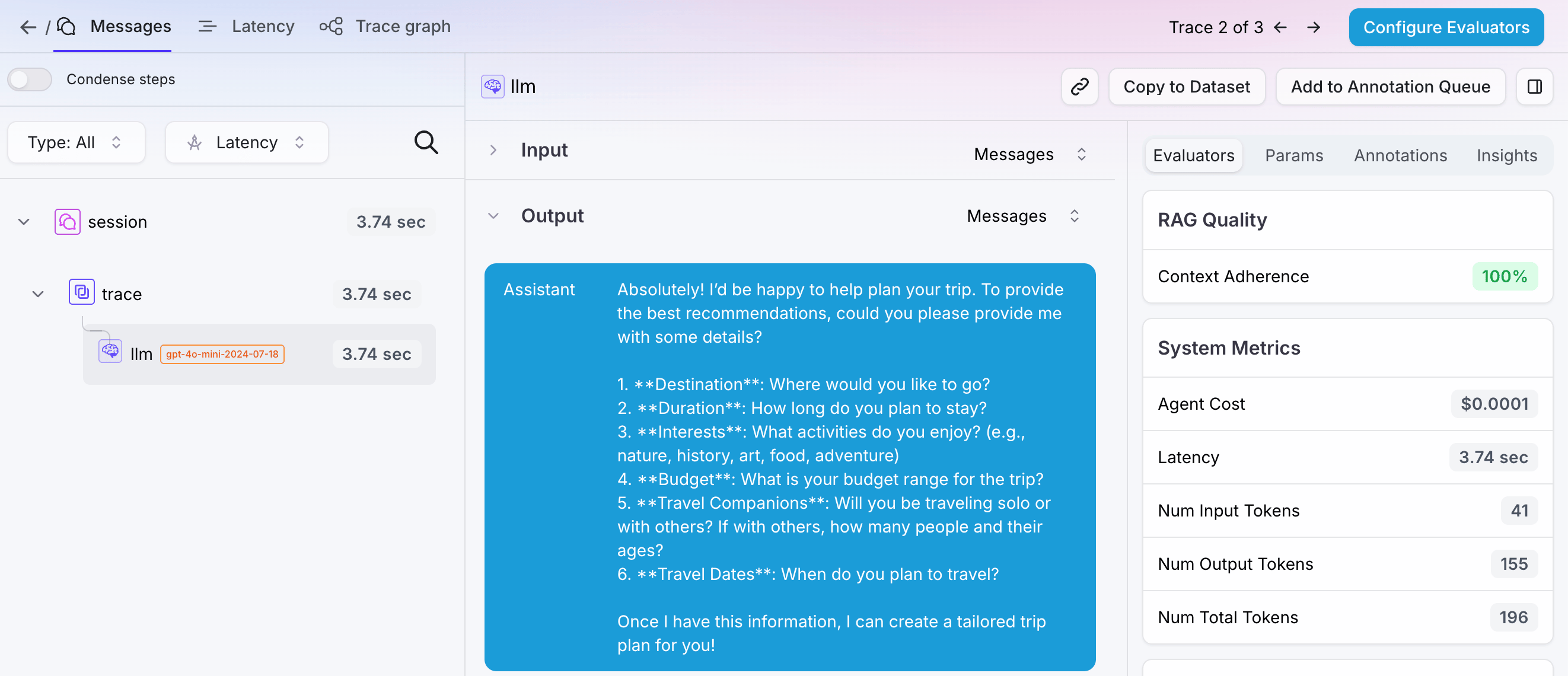
A new trace will have been logged. This time, the context adherence score should be higher because the trip plan is grounded in the traveler information supplied in the system prompt. Select the trace to see more details.
This shows a common problem with an AI application: the LLM does not have enough relevant context to produce a useful, personalized response.
The request asks the model to plan a trip but does not provide a destination, dates, budget, or traveler preferences. As a result, the model can only give generic advice, ask for more information, or make unsupported assumptions.
Let's fix this by providing relevant traveler information as context, then confirm the improvement with a higher context adherence score.
## Improve your application
To improve the context adherence score, provide the LLM with relevant traveler information, such as the destination, trip length, budget, and interests.
To improve context adherence, add the traveler's requirements and preferences to the system prompt. This is similar to providing an application with information retrieved from a RAG system.
Update your code, replacing the existing system prompt with the following:
```python Python theme={null}
relevant_documents = [
"""
The traveler wants to take a five-day trip to Kyoto, Japan, in April.
They will depart from San Francisco.
""",
"""
The traveler has a budget of $3,000, excluding airfare. They prefer
a mid-range hotel near public transportation.
""",
"""
The traveler is interested in temples, gardens, food markets, and
Japanese tea culture. They prefer a relaxed itinerary with
vegetarian-friendly dining options.
"""
]
system_prompt = f"""
You are a helpful travel-planning assistant. Use the provided traveler
information to create a personalized itinerary. Do not invent traveler
preferences or requirements that are not included in the context.
Here is the relevant traveler information:
{relevant_documents}
"""
```
Run your application again to log a new trace.
The response should now provide a personalized trip plan based on the supplied traveler information. For example:
```output Terminal wrap theme={null}
Here is a relaxed five-day itinerary for Kyoto in April:
### Day 1: Arrival and central Kyoto
- Check in to a mid-range hotel near a train or subway station.
- Take an easy walk through central Kyoto.
- Have dinner at a vegetarian-friendly restaurant.
### Day 2: Temples and gardens
- Visit Kinkaku-ji in the morning.
- Explore the gardens and temples in the Arashiyama area.
- Leave time for a relaxed walk through the bamboo grove.
### Day 3: Markets and local food
- Visit Nishiki Market.
- Explore nearby shops and historic streets.
- Look for vegetarian versions of local dishes.
### Day 4: Tea culture
- Take a day trip to Uji to experience Japanese tea culture.
- Visit a tea house and explore the area at a relaxed pace.
### Day 5: Eastern Kyoto
- Walk through the Higashiyama district.
- Visit Kiyomizu-dera and nearby gardens.
- Finish the trip with time for shopping or an additional tea experience.
This itinerary can be adjusted while keeping the total budget near $3,000, excluding airfare. Choosing a mid-range hotel near public transportation will make it easier to reach each area.
```
The exact response might differ depending on the model and when you run the application, but it should use the supplied destination, trip length, budget, lodging preference, and interests.
A new trace will have been logged. This time, the context adherence score should be higher because the trip plan is grounded in the traveler information supplied in the system prompt. Select the trace to see more details.
 🎉 **Congratulations**, you have evaluated a trace, and used the results of the evaluation to improve your AI application.
## Next steps
Learn how to get started with the Splunk Agent Observability sample projects that are included in every new account.
Learn about the Splunk Agent Observability integrations with third-party SDKs to automatically log your applications
### Cookbooks
Learn how to perform common tasks with Splunk Agent Observability, work with third-party integrations, and use evaluations to solve AI problems
### SDK reference
The Splunk Agent Observability Python SDK reference.
🎉 **Congratulations**, you have evaluated a trace, and used the results of the evaluation to improve your AI application.
## Next steps
Learn how to get started with the Splunk Agent Observability sample projects that are included in every new account.
Learn about the Splunk Agent Observability integrations with third-party SDKs to automatically log your applications
### Cookbooks
Learn how to perform common tasks with Splunk Agent Observability, work with third-party integrations, and use evaluations to solve AI problems
### SDK reference
The Splunk Agent Observability Python SDK reference.