> ## Documentation Index
> Fetch the complete documentation index at: https://agent-observability-docs.splunk.com/llms.txt
> Use this file to discover all available pages before exploring further.
# Run an Experiment
> Learn how to run your first experiment using prompts and datasets
Experiments allow you to evaluate prompts, models, and your application code, using well-defined inputs, against evaluators of your choice.
## Run an experiment with UI
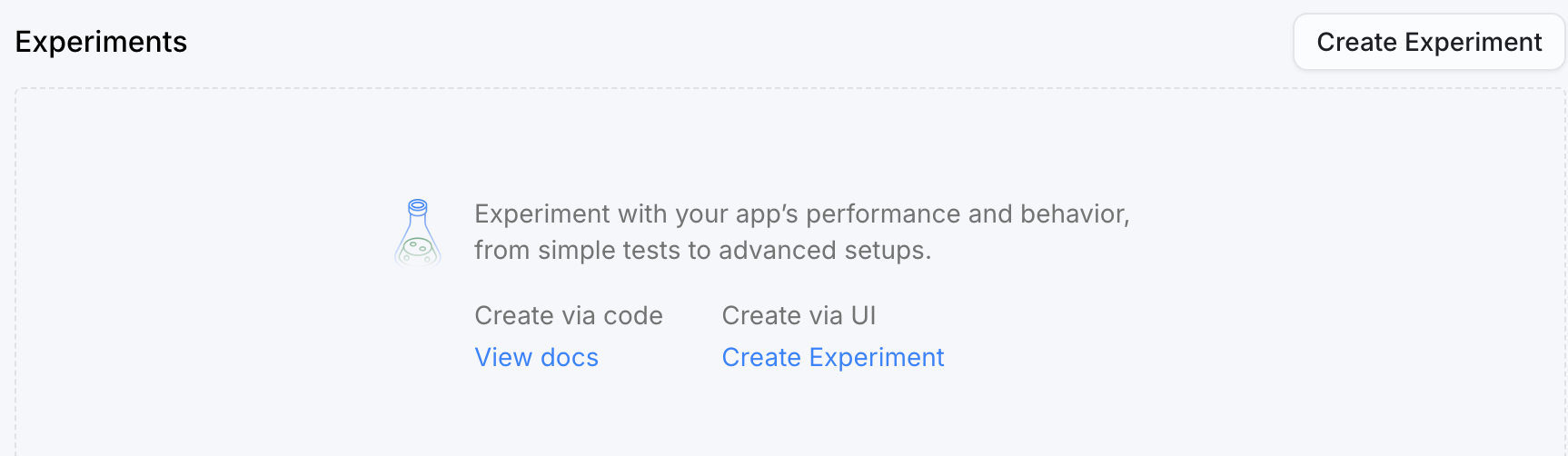
In the Splunk Agent Observability UI, use the main menu to select **Overview**. In the **Experiments** section, select **Create Experiment** to add an experiment to a project.
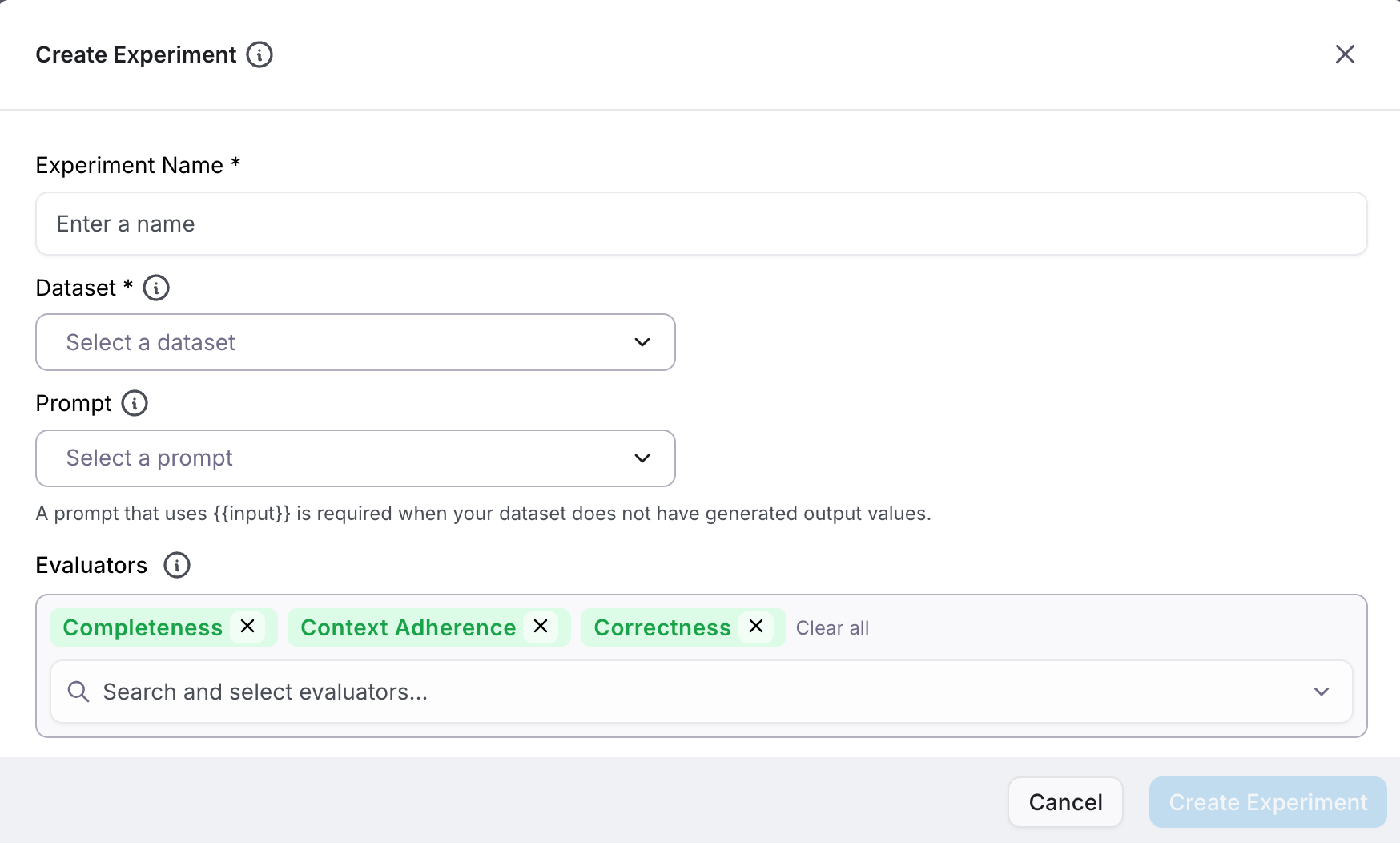
 You can use a sample dataset and sample prompt to create your first experiment.
If you don't already have an integration (e.g. with OpenAI), a "Configure integration" link appears for you to add a valid integration for a prompt.
You can use a sample dataset and sample prompt to create your first experiment.
If you don't already have an integration (e.g. with OpenAI), a "Configure integration" link appears for you to add a valid integration for a prompt.
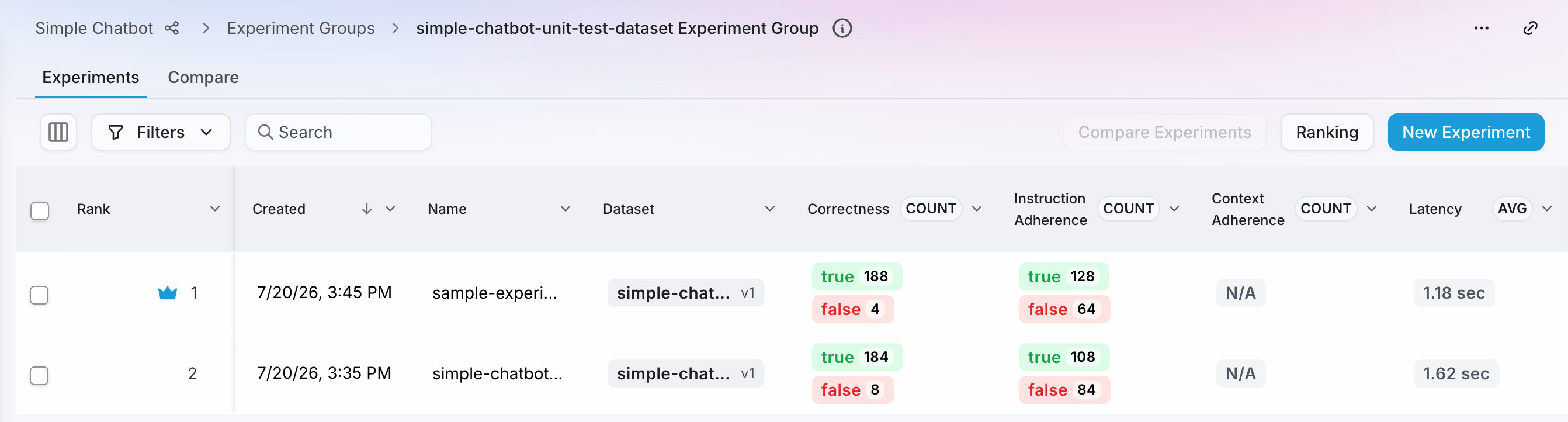
 After successfully creating an experiment, you can view the results from the **Experiments** page of a Splunk Agent Observability project.
 ## Run an experiment with code
### Prerequisite: Configure an LLM integration
To run an experiment using a [prompt](/sdk-api/experiments/prompts) and a [dataset](/sdk-api/experiments/datasets), you need to set up an LLM integration. An integration is also required to evaluate LLM outputs with evaluators.
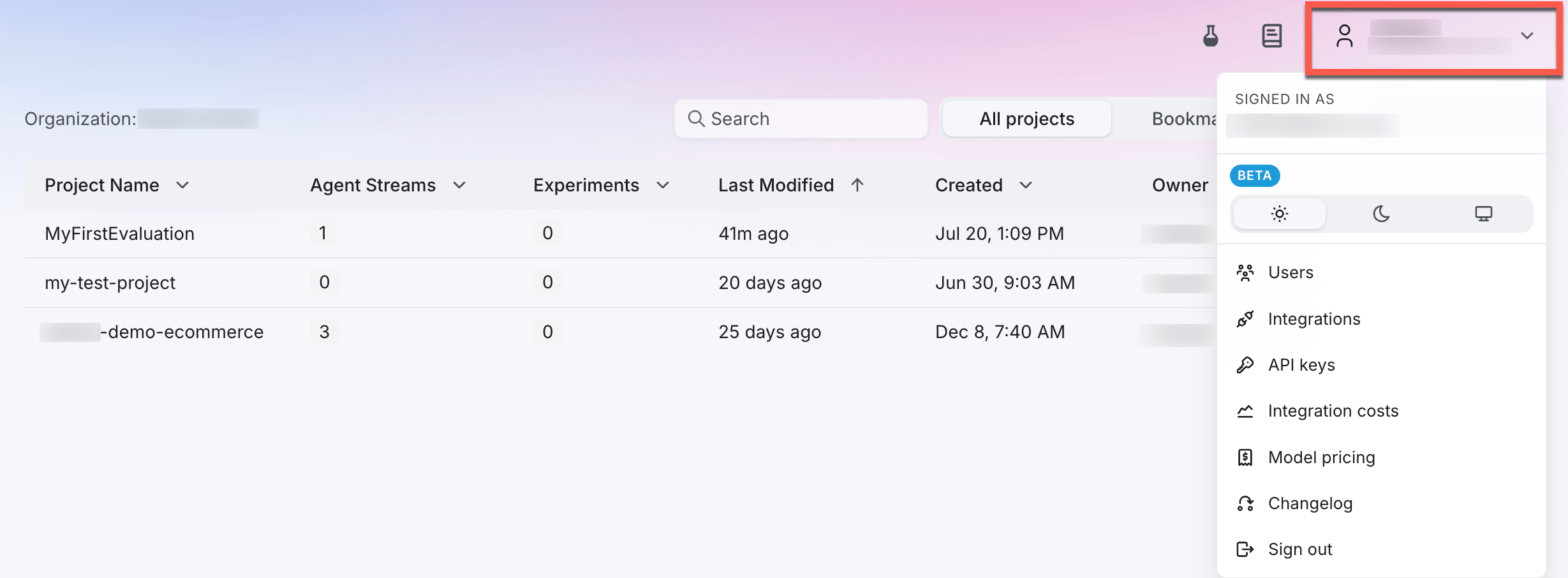
In the Splunk Agent Observability UI, navigate to the **LLM Integrations** page by selecting your user profile in the upper-right corner and then selecting **Integrations**.
## Run an experiment with code
### Prerequisite: Configure an LLM integration
To run an experiment using a [prompt](/sdk-api/experiments/prompts) and a [dataset](/sdk-api/experiments/datasets), you need to set up an LLM integration. An integration is also required to evaluate LLM outputs with evaluators.
In the Splunk Agent Observability UI, navigate to the **LLM Integrations** page by selecting your user profile in the upper-right corner and then selecting **Integrations**.
 Locate the LLM provider you are using (or specify a [custom integration](/sdk-api/third-party-integrations/model-integrations/custom-model-integrations/custom-model-integrations)), then select the **+Add Integration** button.
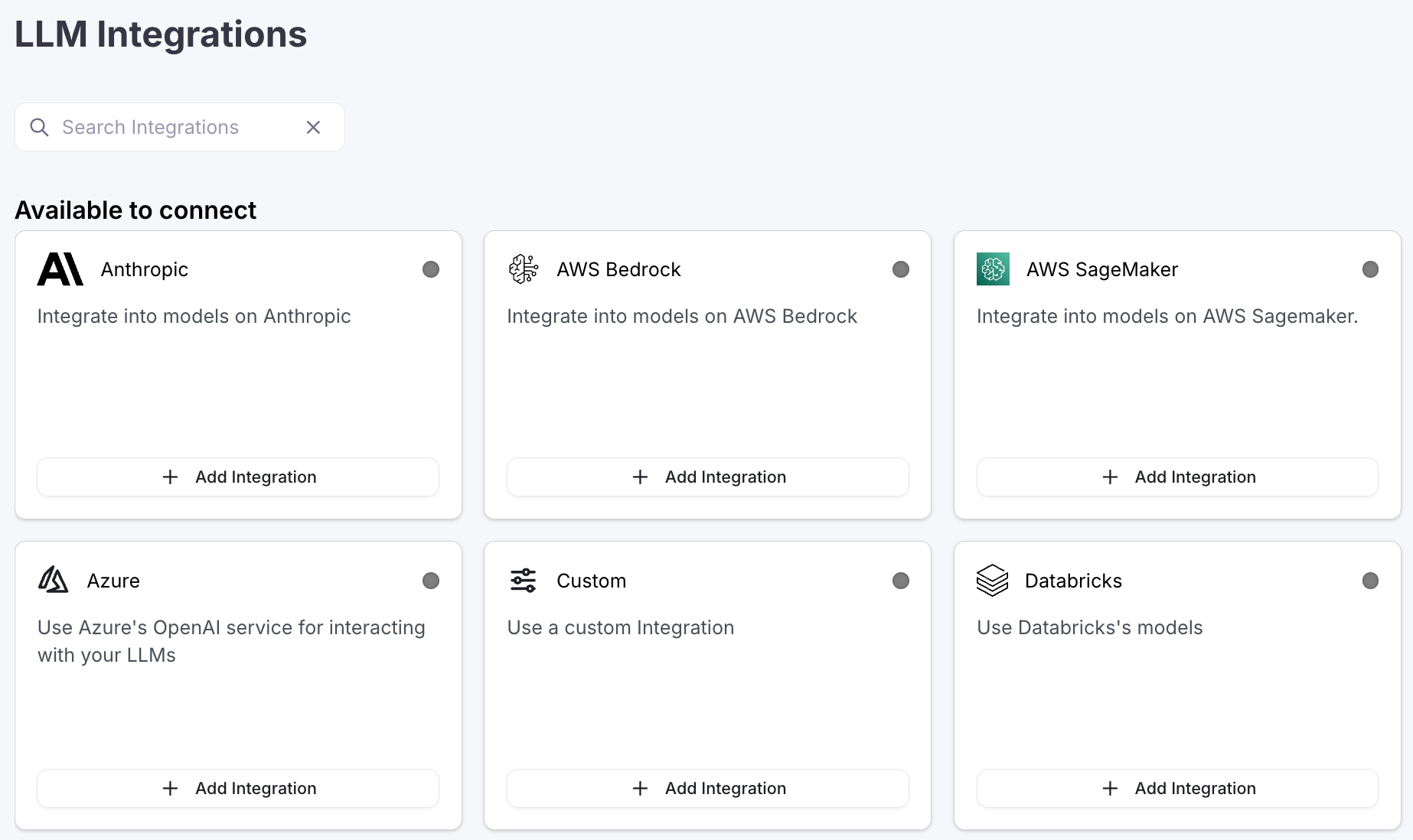 Specify settings for your integration (such as an API key), then select **Save changes**.
### Example experiment with code
Below is a step-by-step guide. [Jump to the application code.](#step-create-your-app-code)
Install the **Splunk Agent Observability SDK**, and the dotenv package using the following command in your terminal:
```bash Python theme={null}
pip install splunk-ao python-dotenv
```
Create an `.env` file in your project folder, and set:
* Your Splunk Agent Observability API key, which you can get from the **App keys** page in the UI
* Your Splunk Agent Observability project name
```ini .env theme={null}
SPLUNK_AO_PROJECT="your-splunk-ao-project-name"
# If you are using an on-premises, standalone, or custom deployment
# provide the API key and URL below
# SPLUNK_AO_API_KEY="your-splunk-ao-api-key"
# SPLUNK_AO_CONSOLE_URL="your-splunk-ao-url"
```
Create a file called `app.py` (Python) and add the following code:
```python Python theme={null}
import os
from splunk_ao import SplunkAOEvaluators, Message, MessageRole
from splunk_ao.config import SplunkAOConfig
from splunk_ao.datasets import create_dataset, get_dataset
from splunk_ao.experiments import run_experiment
from splunk_ao.prompts import create_prompt, get_prompt
from splunk_ao.resources.models.prompt_run_settings import PromptRunSettings
# Load the environment variables
from dotenv import load_dotenv
load_dotenv()
# Create a prompt template, or load it if it already exists
prompt = get_prompt(name="My Prompt")
if not prompt:
prompt = create_prompt(
name="My Prompt",
template=[
Message(
role=MessageRole.system,
content="""
Splunk Agent Observability is the fastest way to ship reliable apps.
Splunk Agent Observability brings automation and insight to AI evaluations so you can
ship with confidence.
""",
),
Message(role=MessageRole.user, content="{{input}}"),
],
)
# Create a dataset, or load it if it already exists
dataset = get_dataset(name="My Dataset")
if not dataset:
dataset = create_dataset(
"My Dataset",
content=[
{"input": "What is Splunk Agent Observability?"},
{"input": "What is Copernicus?"}
],
)
# Run the experiment
experiment = run_experiment(
experiment_name="My Experiment",
prompt_template=prompt,
dataset=dataset,
metrics=[SplunkAOEvaluators.context_adherence],
project=os.environ.get("SPLUNK_AO_PROJECT"),
prompt_settings=PromptRunSettings(model_alias="gpt-5-mini"),
)
# Show Splunk Agent Observability information
config = SplunkAOConfig.get()
prompt_url = f"{config.console_url}prompts/{prompt.id}"
dataset_url = f"{config.console_url}datasets/{dataset.dataset.id}"
print()
print("🚀 SPLUNK-AO LOG INFORMATION:")
print(f"🔗 Prompt : {prompt_url}")
print(f"🔗 Dataset : {dataset_url}")
print(f"🔗 Experiment : {experiment['link']}")
```
This code defaults to using `gpt-5-mini`. If you want to use a different model, update the `model_alias` in the prompt settings passed to the call to run experiment.
This code creates a prompt containing a system prompt and user prompt, and the user prompt has a mustache template to inject rows from the dataset. It also creates a dataset.
It then uses these to run an experiment, measuring context adherence.
If the prompt or dataset already exist, they are loaded instead of being recreated.
Run your application using the following command in your terminal:
```bash Python theme={null}
python app.py
```
```output Terminal theme={null}
Experiment My Experiment has started and is currently processing.
Results will be available at /project/.../experiments/...
🚀 Splunk Agent Observability LOG INFORMATION:
🔗 Prompt : /prompts/...
🔗 Dataset : /datasets/...
🔗 Experiment : /project/.../experiments/...
```
Open the experiment in the Splunk Agent Observability UI using the URL output to your terminal. You will see the logged experiment with 2 rows, one for each entry in the dataset.
Specify settings for your integration (such as an API key), then select **Save changes**.
### Example experiment with code
Below is a step-by-step guide. [Jump to the application code.](#step-create-your-app-code)
Install the **Splunk Agent Observability SDK**, and the dotenv package using the following command in your terminal:
```bash Python theme={null}
pip install splunk-ao python-dotenv
```
Create an `.env` file in your project folder, and set:
* Your Splunk Agent Observability API key, which you can get from the **App keys** page in the UI
* Your Splunk Agent Observability project name
```ini .env theme={null}
SPLUNK_AO_PROJECT="your-splunk-ao-project-name"
# If you are using an on-premises, standalone, or custom deployment
# provide the API key and URL below
# SPLUNK_AO_API_KEY="your-splunk-ao-api-key"
# SPLUNK_AO_CONSOLE_URL="your-splunk-ao-url"
```
Create a file called `app.py` (Python) and add the following code:
```python Python theme={null}
import os
from splunk_ao import SplunkAOEvaluators, Message, MessageRole
from splunk_ao.config import SplunkAOConfig
from splunk_ao.datasets import create_dataset, get_dataset
from splunk_ao.experiments import run_experiment
from splunk_ao.prompts import create_prompt, get_prompt
from splunk_ao.resources.models.prompt_run_settings import PromptRunSettings
# Load the environment variables
from dotenv import load_dotenv
load_dotenv()
# Create a prompt template, or load it if it already exists
prompt = get_prompt(name="My Prompt")
if not prompt:
prompt = create_prompt(
name="My Prompt",
template=[
Message(
role=MessageRole.system,
content="""
Splunk Agent Observability is the fastest way to ship reliable apps.
Splunk Agent Observability brings automation and insight to AI evaluations so you can
ship with confidence.
""",
),
Message(role=MessageRole.user, content="{{input}}"),
],
)
# Create a dataset, or load it if it already exists
dataset = get_dataset(name="My Dataset")
if not dataset:
dataset = create_dataset(
"My Dataset",
content=[
{"input": "What is Splunk Agent Observability?"},
{"input": "What is Copernicus?"}
],
)
# Run the experiment
experiment = run_experiment(
experiment_name="My Experiment",
prompt_template=prompt,
dataset=dataset,
metrics=[SplunkAOEvaluators.context_adherence],
project=os.environ.get("SPLUNK_AO_PROJECT"),
prompt_settings=PromptRunSettings(model_alias="gpt-5-mini"),
)
# Show Splunk Agent Observability information
config = SplunkAOConfig.get()
prompt_url = f"{config.console_url}prompts/{prompt.id}"
dataset_url = f"{config.console_url}datasets/{dataset.dataset.id}"
print()
print("🚀 SPLUNK-AO LOG INFORMATION:")
print(f"🔗 Prompt : {prompt_url}")
print(f"🔗 Dataset : {dataset_url}")
print(f"🔗 Experiment : {experiment['link']}")
```
This code defaults to using `gpt-5-mini`. If you want to use a different model, update the `model_alias` in the prompt settings passed to the call to run experiment.
This code creates a prompt containing a system prompt and user prompt, and the user prompt has a mustache template to inject rows from the dataset. It also creates a dataset.
It then uses these to run an experiment, measuring context adherence.
If the prompt or dataset already exist, they are loaded instead of being recreated.
Run your application using the following command in your terminal:
```bash Python theme={null}
python app.py
```
```output Terminal theme={null}
Experiment My Experiment has started and is currently processing.
Results will be available at /project/.../experiments/...
🚀 Splunk Agent Observability LOG INFORMATION:
🔗 Prompt : /prompts/...
🔗 Dataset : /datasets/...
🔗 Experiment : /project/.../experiments/...
```
Open the experiment in the Splunk Agent Observability UI using the URL output to your terminal. You will see the logged experiment with 2 rows, one for each entry in the dataset.
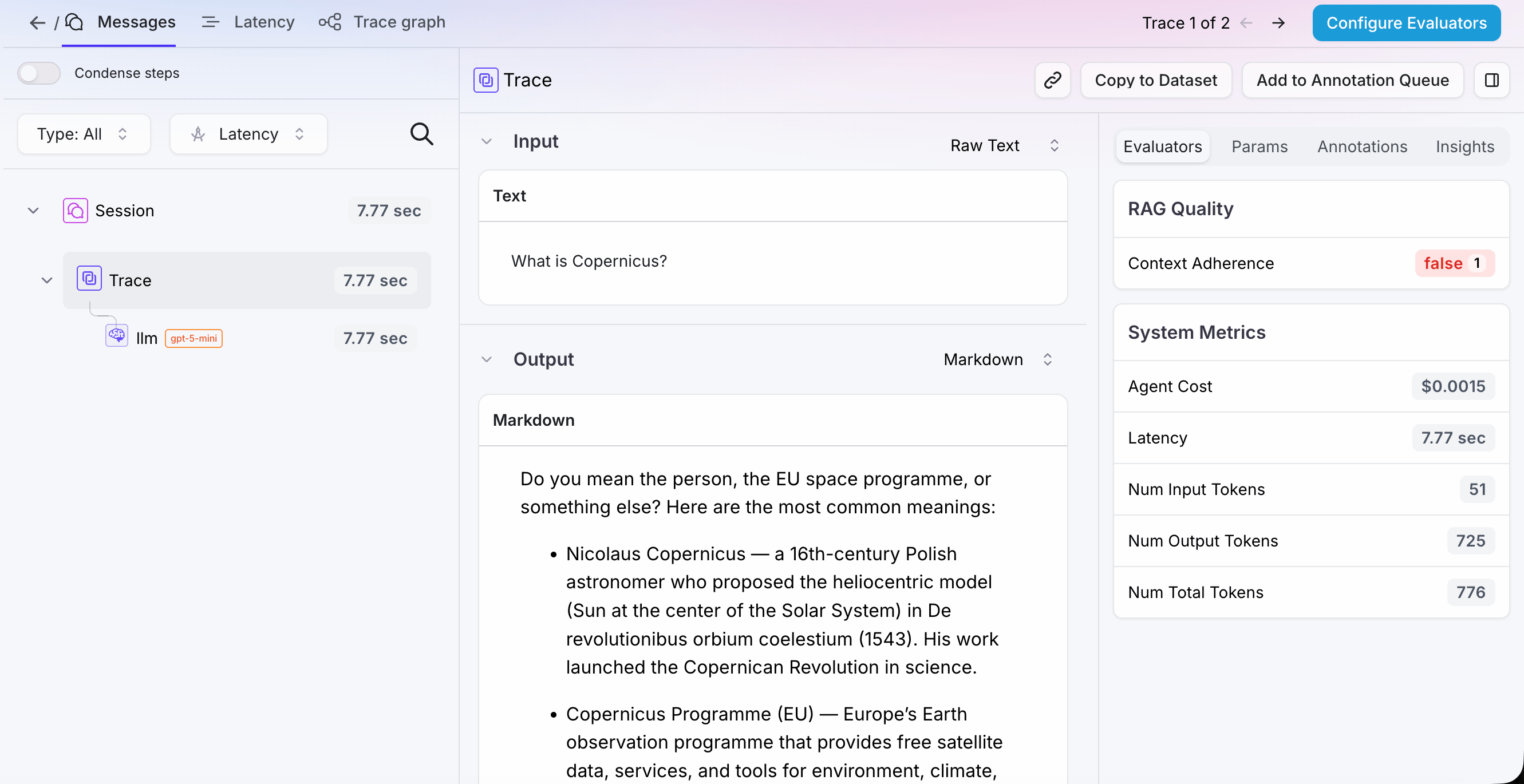
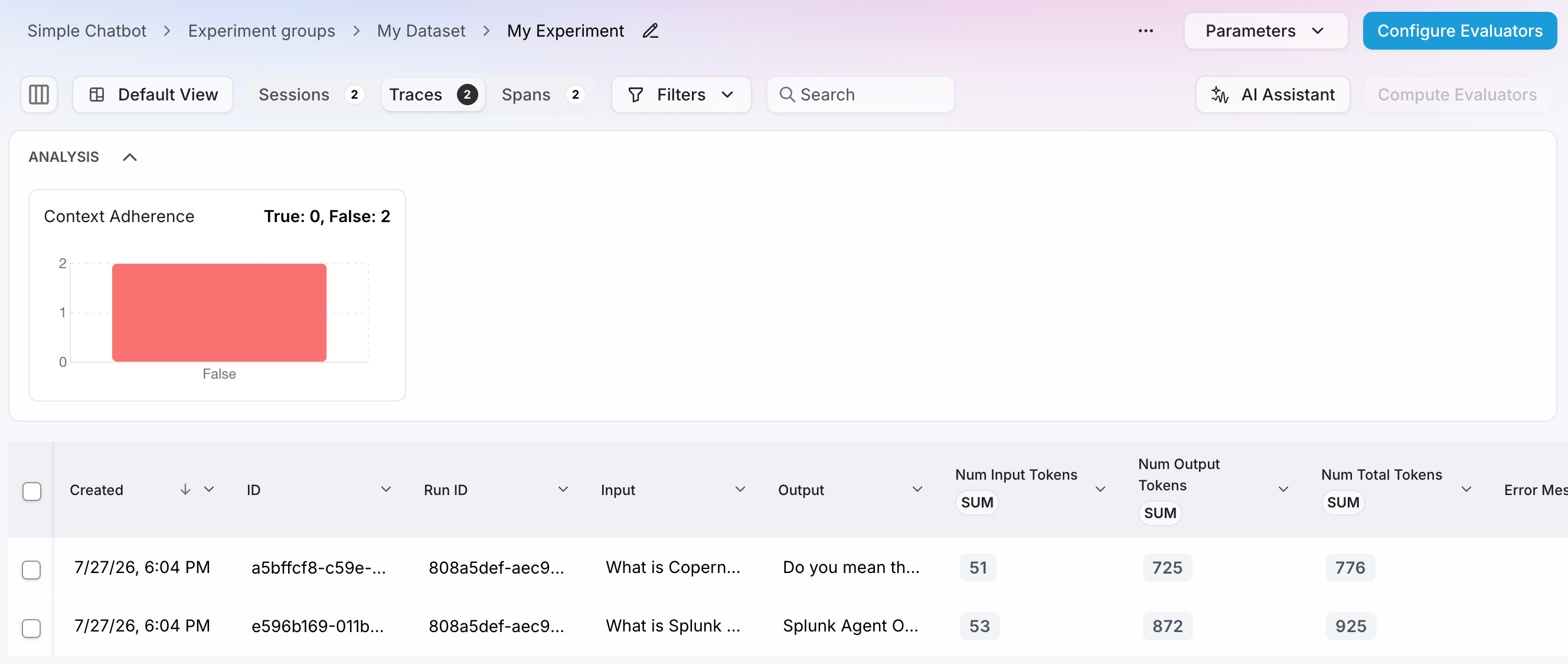 Select a trace to see more details, including an explanation of the evaluator score.
 ## Troubleshooting
* **I need a Splunk Agent Observability API key**: Navigate to your Splunk Agent Observability homepage and sign up. Then head to the **API keys** page to get a new API key.
* **What's my project name ?**: The project name was set when you created a new project. If you haven't created a new project, head to Splunk Agent Observability and select the **New Project** button.
## Next steps
Learn how to create and manage datasets in Splunk Agent Observability.
Learn about running experiments in the Splunk Agent Observability UI using playgrounds and datasets.
Learn how to run experiments in Splunk Agent Observability.
Learn how to compare experiments in Splunk Agent Observability.
## Troubleshooting
* **I need a Splunk Agent Observability API key**: Navigate to your Splunk Agent Observability homepage and sign up. Then head to the **API keys** page to get a new API key.
* **What's my project name ?**: The project name was set when you created a new project. If you haven't created a new project, head to Splunk Agent Observability and select the **New Project** button.
## Next steps
Learn how to create and manage datasets in Splunk Agent Observability.
Learn about running experiments in the Splunk Agent Observability UI using playgrounds and datasets.
Learn how to run experiments in Splunk Agent Observability.
Learn how to compare experiments in Splunk Agent Observability.