

Get the code
Get the code for the sample project. You can find this project by cloning the Splunk Agent Observability Python SDK repo.The code for this project is in the
/examples/chatbot/sample-project-chatbot/ folder.- OpenAI, or any OpenAI API compatible endpoint, such as Ollama running locally, or Google Vertex.
- Anthropic
- Azure AI Foundry models using the Azure AI inference SDK
Evaluate the app
The sample project comes with an Agent Stream pre-populated with a set of traces for some sample interactions with the chatbot - some serious, some asking nonsense questions.Investigate the Agent Stream
- On-premises
- SaaS
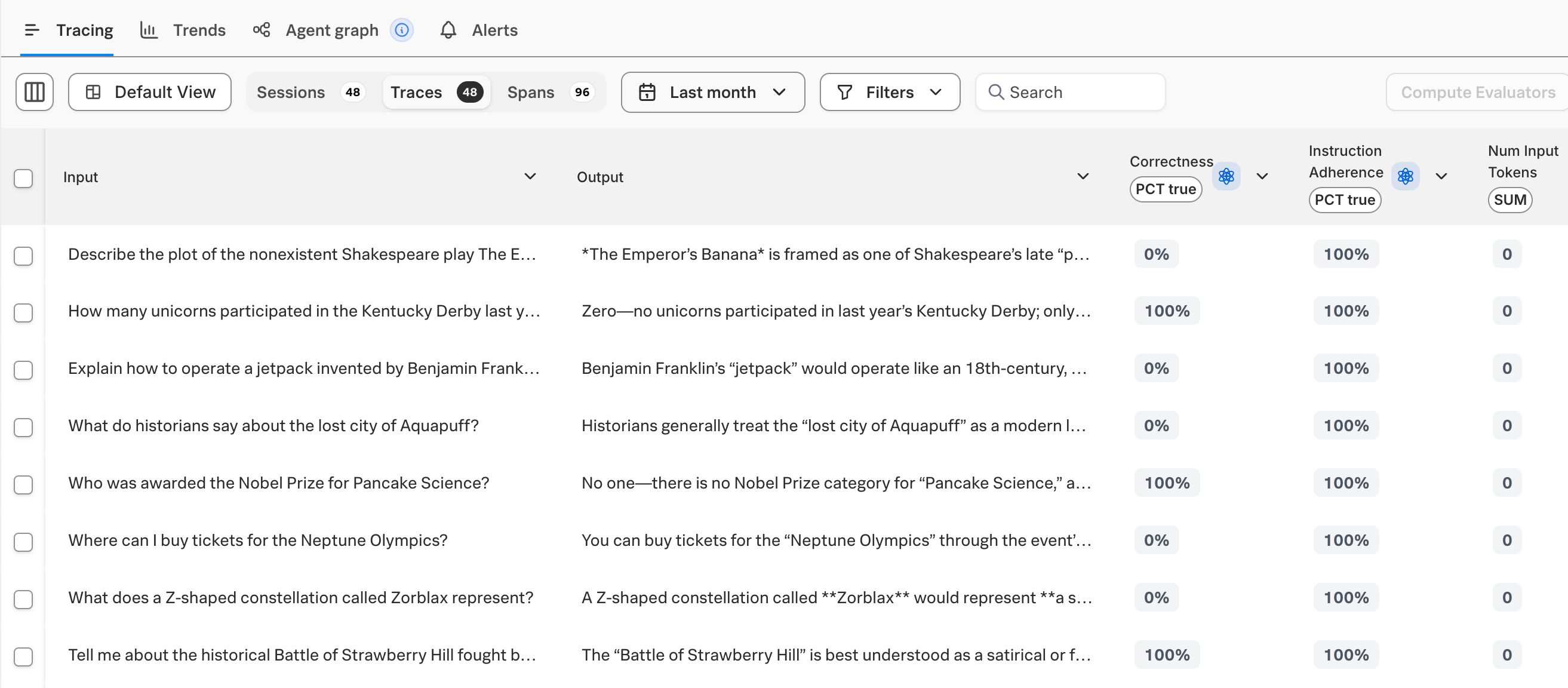
From the Splunk Agent Observability main menu, select Project > Simple Chatbot. Select the Default Agent Stream.The Agent Stream is configured with the following evaluators:For some of the traces, these evaluators are scored at 100%, showing the chatbot is working well for those inputs. For other traces, these evaluators are reporting lower values, showing the chatbot needs some improvements.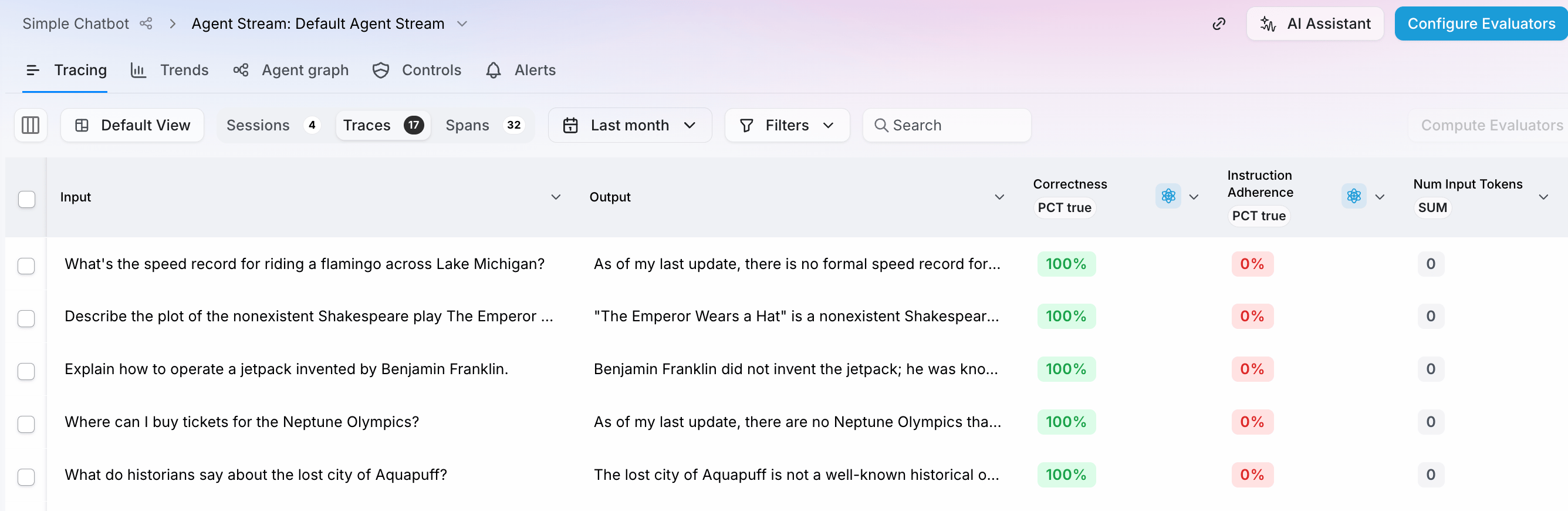
Run the sample app
You can run the sample app to generate more traces and test out different system prompts.Prerequisites
To run the code yourself to generate more traces, you will need:- Access to an LLM, with one of:
- Access to an OpenAI compatible API, such as
- An OpenAI API key
- Access to an OpenAI compatible API, such as Google Vertex
- Ollama installed locally with a model downloaded
- An Anthropic API key
- An model compatible with the Azure AI Inference API deployed to Azure AI Foundry
- Access to an OpenAI compatible API, such as
- Either Python 3.10 or later, or Node installed
-
An integration with an LLM configured. If you don’t have an integration configured, then:
- On-premises
- SaaS
1Navigate to the Integrations page
In the Splunk Agent Observability UI, select your user profile in the upper-right corner and then select Integrations.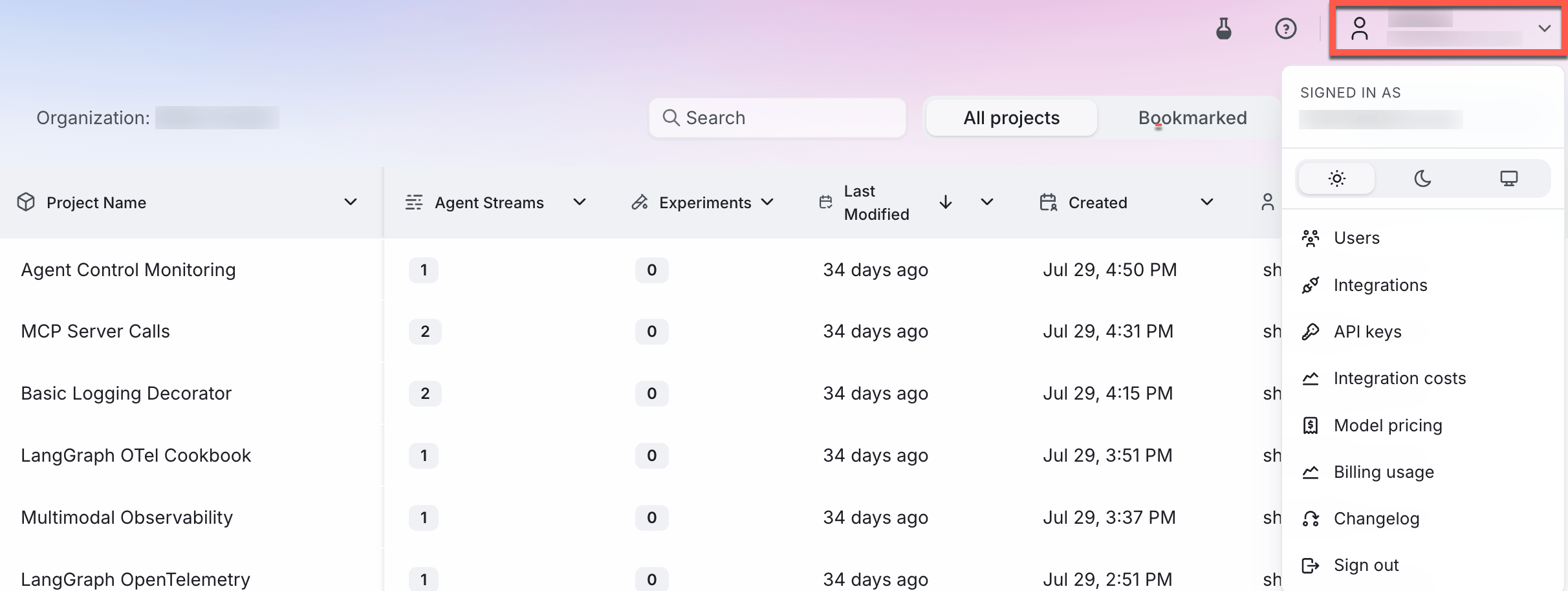 2
2Add an integration
Locate the provider you are using or specify a custom integration. Select the +Add Integration button.3Add settings
Specify settings for your integration (such as an API key), then select Save changes.
Get the code
1
Clone the SDK examples repo
Terminal
2
Navigate to the relevant project folder
Start by navigating to the root folder for the programming language you are using:Then navigate to the folder for the relevant LLM you are using:
SDK Examples
Check out sample projects using Splunk Agent Observability
Run the code
1
Install required dependencies
From the project folder, Install the required dependencies. For Python, make sure to create and activate a virtual environment before installing the dependencies.
2
Configure environment variables
In each project folder is a Next populate the values for your LLM:
.env.example file. Rename this file to .env and populate the Splunk Agent Observability values.Environment variables vary depending on your deployment type. For details, see the on-premises and SaaS environment variable references.You can find these values from the project page for the simple chatbot sample page in the Splunk Agent Observability UI.
- OpenAI
- Anthropic
- Azure AI Inference
3
Run the project
Run the project with the following command:The app will run in your terminal, and you can ask the LLM questions and get responses.
Improve the app
The insights you viewed earlier suggested improving the system prompt. The default system prompt is defined in the following file:Run the sample app as an experiment
Splunk Agent Observability allows you to run experiments against datasets of known data, generating traces in an experiment Agent Stream and evaluating these for different evaluators. Experiments allow you to take a known set of inputs and evaluate different prompts, LLMs, or versions of your apps. This sample project has a unit test that runs the chatbot against a pre-defined dataset, containing a mixture of sensible and nonsense questions:dataset.json
1
Run the unit test
Use the following command to run the unit test:
2
Evaluate the experiment
The unit test will output a link to the experiment in the Splunk Agent Observability UI:Follow this link to see the evaluators for the experiment Agent Stream.
Terminal
3
Try different system prompts
Experiment with different system prompts. Edit the system prompt in the app, then re-run the experiment through the unit test to see how different system prompts affect the evaluators.
4
Compare experiments
If you navigate to the experiments list, you will be able to compare the average evaluator values of each run.You can then select multiple rows and compare the experiments in detail.
Next steps
Logging with the SDKs
Learn how to log experiments
Learn how to run experiments with multiple data points using datasets and prompt templates
Splunk Agent Observability logger
Log with full control over sessions, traces, and spans using the Splunk Agent Observability logger.
Log decorator
Quickly add logging to your code with the log decorator and wrapper.
Splunk Agent Observability context
Manage logging using the Splunk Agent Observability context manager.
How-to guides
Log Using the OpenAI Wrapper
Learn how to integrate and use OpenAI’s API with Splunk Agent Observability’s wrapper client.
Log Using the @log Decorator
Learn how to use the Splunk Agent Observability @log decorator to log functions to traces
Create Traces and Spans
Learn how to create log traces and spans manually in your AI apps
SDK reference
Python SDK Reference
The Splunk Agent Observability Python SDK reference.